Hardware Upgrade March 3rd
Open VPN Upgrade
- Create backup configs of both zyxel and TP Link.
- Test the static IP with laptop first:
- Configure laptop with the usable static IP
- Plug laptop into the zyxel
- Verify I have internet access and google "what's my IP"
- Once verified, undo all of this
- Clear out any extraneous configurations (i.e. static IPs and port forwarding) from the zyxel.
- Clear out any extraneous configurations (i.e. static IPs and port forwarding) from the TP Link.
- Check network access again. Should be fine.
- Assign static IP on TP Link for usable IP.
Replace R2 with R1
Take screenshots on the Camile PC of the dashboard before doing anything else. Make note of the file location when saving the screenshots.
Turn off power (remove plug from wall that powers the TDK) to the Rac holding the R2 (10.60.1.41).
Jake replaces the R2 with the R1 that's already configured with the correct IP address (10.60.1.41).
Turn the power to the Rac back on.
On Camile PC, Open PAC Control and it should load with epa_streamsFacility.idb.
- If it doesn't, then go to File > Open Control Strategy. C:\Camile\Opto Code\Control Strategy\epa_streamsfacility.idb
Configure the Controller
- In PAC Control, go to Configure > IO... >
- Click on the Rac1_controlRoom to highlight a selection. Click the modify button
- Go down to the second section of the pop up box Under Type click on the dropdown box and change the value from SNAP-PAC_R2 to SNAP-PAC_R1
- Check the controller’s IP address, it should be 10.60.1.41.
- Then click OK.
Compile and Download the Strategy
- Click Compile ALL button to ensure there are no errors.
- Click the Aqua Debug button
- Click Download Strategy and confirm the action.
Reload the Database in OptoBrowser Configurator
- Open OptoBrowser Configurator.
- Navigate to File > Open Database.
- Open OPC_Database_27July2021.bdb (the most recent version).
- Click Save as and rename it to OPC_Database_03March2025.bdb
- Click on Server/Update Server with Current Browser Database
- Close OptoBrowser Configurator.
Check the OPC Server
- Navigate to File > Tag Browser.
- you should see tags here.
- Navigate to File > Tag Browser.
Run the Strategy
- Switch back to PAC Control.
- Click Run to start execution.
- Verify that the strategy is running correctly in PAC Control Debug Mode.
Verify Camile PC HMI output
- Specifically check for tags that are for the following:
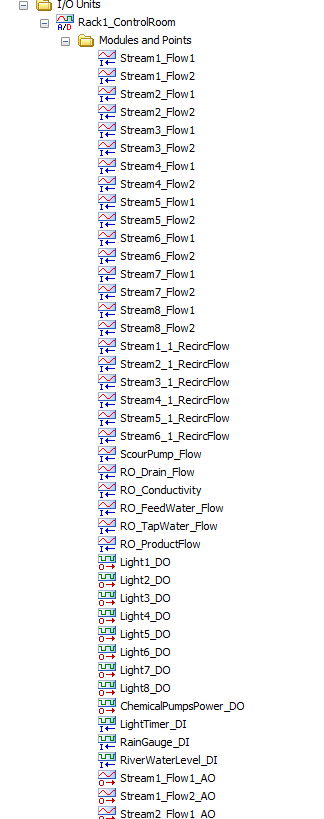
- Ensure updated tags and values are present.
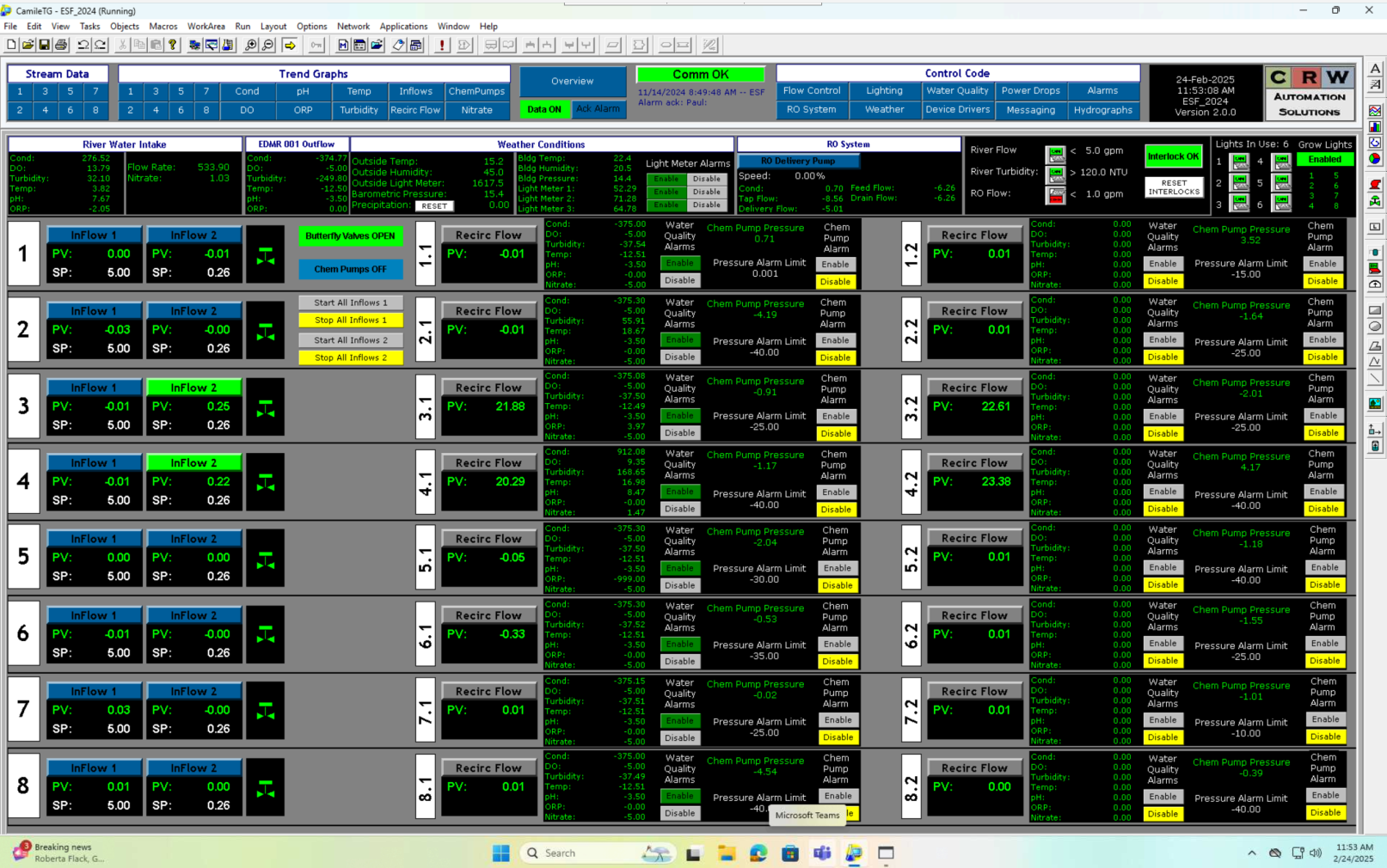
- Specifically check for tags that are for the following:
Set up the HP in Parallel (We are putting this on hold for now.)
- Download the Software [https://www.opto22.com/products/pacdisplaypro]
- Unlock the pro version by typing in the password
- I think we will need the following:
- PAC Control
- PAC Manager
- PAC Display
- PAC Display Configurator
- OptoBrowserConfigurator
- OptoOPCServer
- Also Opto Data Link (Optional need to be installed might not need to be launched)
- I think we will need the following:
- Open Pac Controller
- Open the epa_streamsfacility.idb Debug and download.
- Make sure this is on both of the networks APTM and SCADA like the Camile PC
- Open PAC Display Configurator and load the project.
- Verify that communication links are correct
- Set Up OptoBrowser Configurator
- Open the BDB file. This is where the Camile to Opto might mess up.
- TODO Write up exactly what happened. If It doesn't open then set up a camile dummy location for the Path.
- Once the file is open working Update to the OPC Server.
- Open OptoOPCServer.
- Ensure the correct PAC Control strategy is loaded.
- Verify that tags and data sources match your HMI project.
- Open Pac Display Runtime
- Open HMI project.
- Run and test.
In person Questions to ask Jeremy
- Where are the alarms set?
- What does the little valve in the overview page for each stream do?