Opto OPC
This works with the rack-mounted SNAP PAC R-series
System Requirements
- A computer with at least the minimum processor and memory required for your version of Microsoft®
Windows®, and Ethernet capability. Additional memory and a better CPU may be required for some
configurations. We recommend staying away from low-end CPUs and using one of the following
operating systems:
- Microsoft® Windows® 10 Professional (32-bit or 64-bit) or Windows 11 Professional
- (OptoOPCServer and OptoDataLink) Windows Server® 2012 R2, 2016, 2019, and 2022; however, you must install .NET Framework 4.0 prior to installing PAC Project on these operating systems NOTE: PAC Project cannot be installed on Windows XP or older Windows operating systems. Other versions of Windows operating systems and embedded Windows operating systems are not supported.
- Ethernet capability
- VGA or higher resolution monitor. Minimum size: 800x600 with small fonts
- Mouse or other pointing device
- (Optional) Installed Windows printer
- At least 17.5 MB of available hard drive space (for OptoOPCServer only) or up to 337.1 MB if you are installing PAC Project Professional and its default components.
- If your PAC Display™ Professional project accesses an M4-series controller (such as a SNAP-LCM4 or M4RTU) via an Ethernet connection, controller firmware version R4.1a or newer is required. In addition, in order to access strings or string tables, controller firmware R4.1d or newer is required.
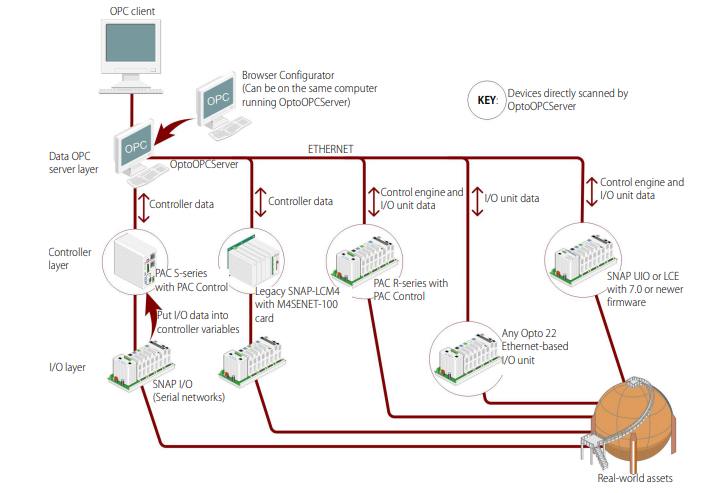
System Architeture The OptoOPCServer uses OPC protocol to communicate with OPC clients, and an Opto 22 proprietary protocol to communicate with Opto 22 devices
Before OptoOPCServer can communicate with Opto 22 controllers, a few steps are required: • First, commission your Opto 22 device. – For SNAP PAC devices, use PAC Manager software and assign its IP address. If your device has dual Ethernet interfaces, you can also use PAC Manager to assign a secondary IP address. For details, see the PAC Manager User’s Guide (form 1704)
- Next, use Opto 22 PAC Control software to create and configure your control strategy (a flowchart-based control program that defines workflows). Within a strategy, select the processor, controller, and I/O units that perform the work. • Finally, download the strategy to the controller and run the strategy. OptoOPCServer uses the IP addresses configured within the strategy to communicate with the devices.
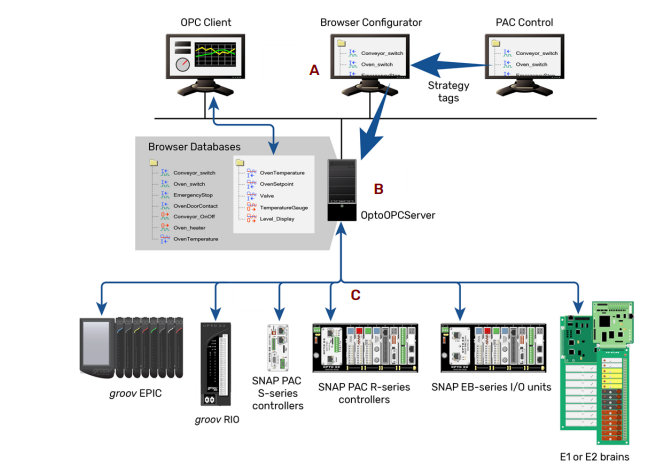
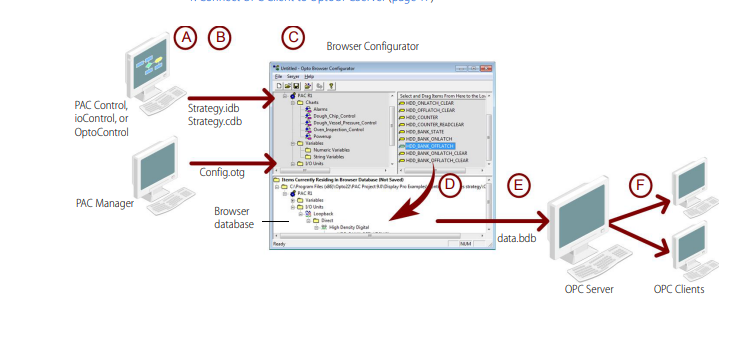
Browser items consist of: • Tags from I/O unit configuration files created with PAC Manager (or ioManager) • Strategy tags that reside in PAC Control (or ioControl or OptoControl) strategies Items from any of these types of files can be added to an Opto Browser Configurator browser database. A browser database file can contain a mixture of items from single or multiple strategies, or I/O Unit configurations. To open a browser items file in Opto Browser Configurator, you need to know the location of the browser item you created in PAC Manager (.otg), PAC Control (.idb), ioControl (.idb), or OptoControl (.cdb).The Opto Browser Configurator window appears with a new, untitled browser database.
Opening files in Opto Browser Configurator is page 14