Pac Display Configurator
This is the editor of the Pac Display Runtime. Every single tag needs to be set in this.
Creating a switch
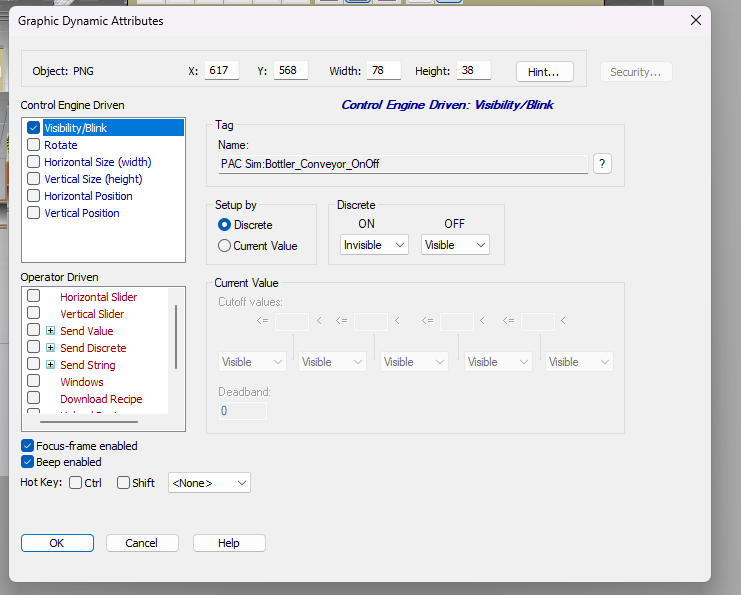
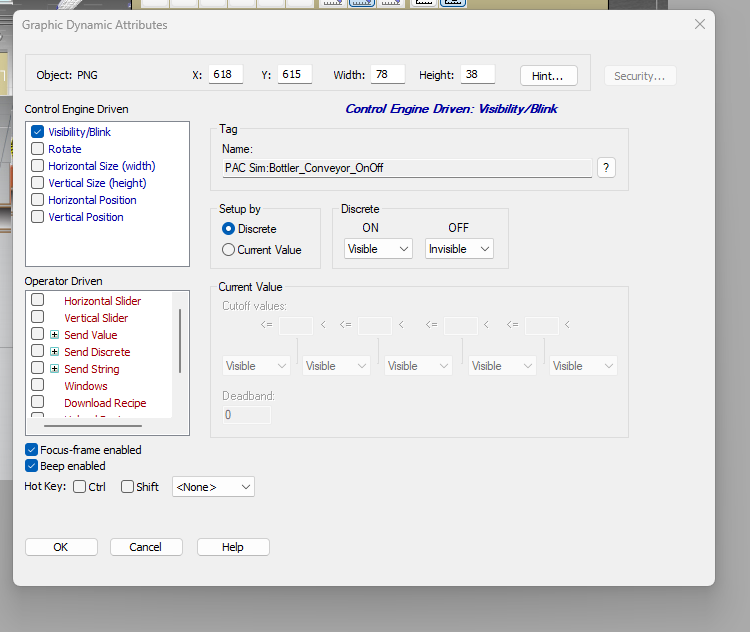
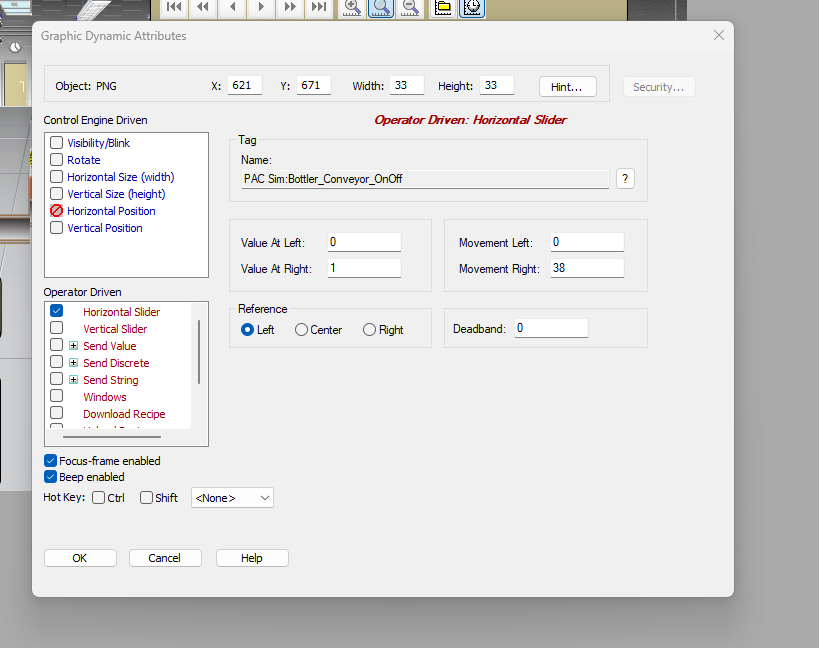

Creating UI Questions I still have
- When do I use windows?
- Am I only using windows for main pages or are module boxes also a window?
- Templates I need to figure out how to do templates quickly.
- How do I create a module box?
- How can I modify a module box as a template.
- Do I have all the screens?
- Alarms Page?
- How do I create a nice image in Pac Display configurator like the valve drawing.
- How do I set and then check the trends.
Templates
This is going to be the most important section of this document as creating templates will reduce the work. Therefore I need to figure this out.
I looked up templates in the Pac Display Runtime User Manual that did not help at all it talked about recipe templates Display templates.
So next step I asked Chat.
- Create the Window Layout
- Open PAC Display Configurator and create a new display or edit an existing one.
- Design the window by adding:
- Background elements (borders, panels, or static text).
- Navigation buttons (e.g., Home, Next, Previous).Dynamic elements (such as status indicators or alarms).
- Header and Footer (if needed for consistency).
- Group Elements for Reuse
- Select all the elements that should be part of the template.
- Click Edit → Group to combine them into a single object.
- Ensure any dynamic text fields or indicators are linked to tags that can be reassigned when reusing the template.
- Save as a Symbol (Template)
- With the grouped elements selected, go to Edit → Create Symbol.
- Enter a name for the symbol (e.g., Window_Template).
- Click OK to save it.
- Use the Template in New Windows
- Open another display where you want to use the template.
- Go to Draw → Symbol.
- Select Window_Template and place it in the new window.
- Adjust dynamic elements and link them to new tags if necessary.
- Save and Test
- Save your display configuration.
- Run PAC Display Runtime to verify functionality