Ohio Model HEC-RAS
HEC-RAS 6.5 version
Installed the latest version of HEC-RAS- 6.5
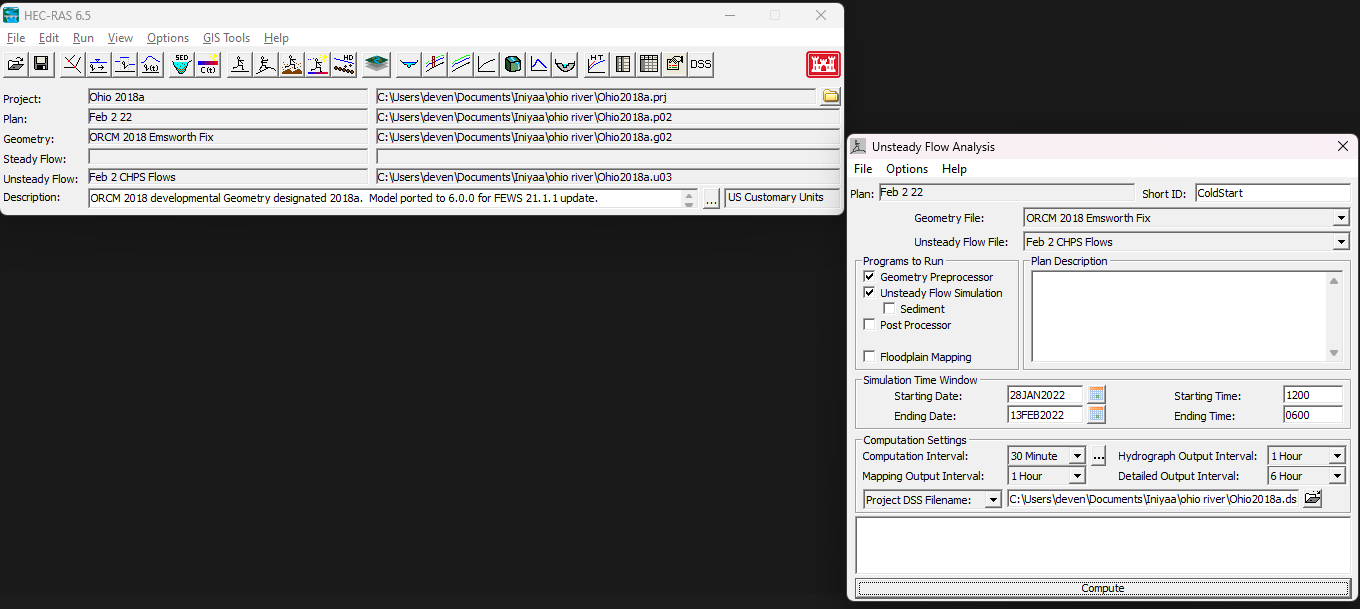
Version Run Error
Ran the Ohio river model ('Ohio_old' folder) and the run was unsuccessful due to
version incompatibility due to the restart file.
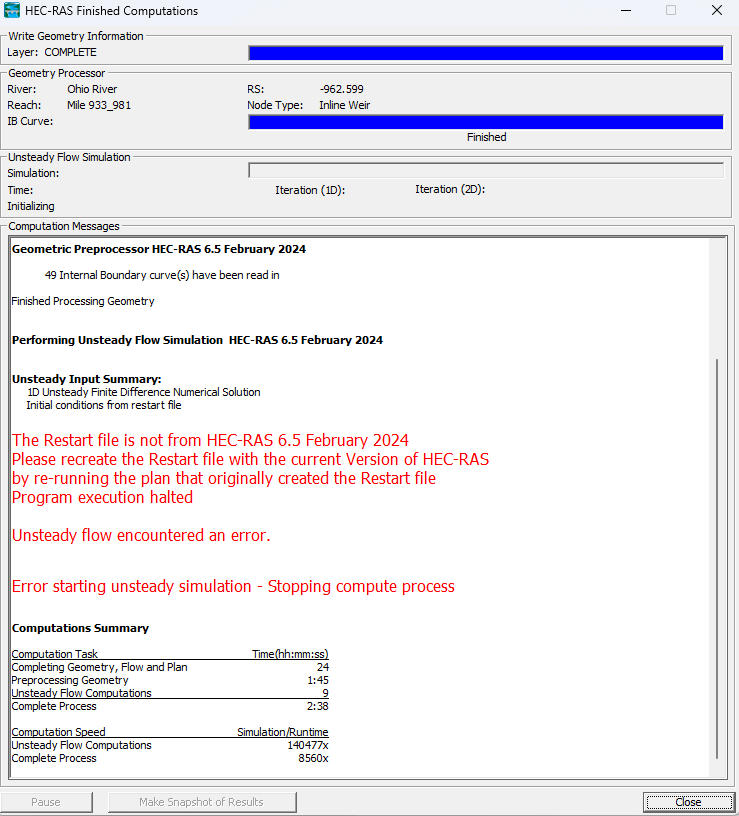
Run without restart
Run was successful but there was no output data.
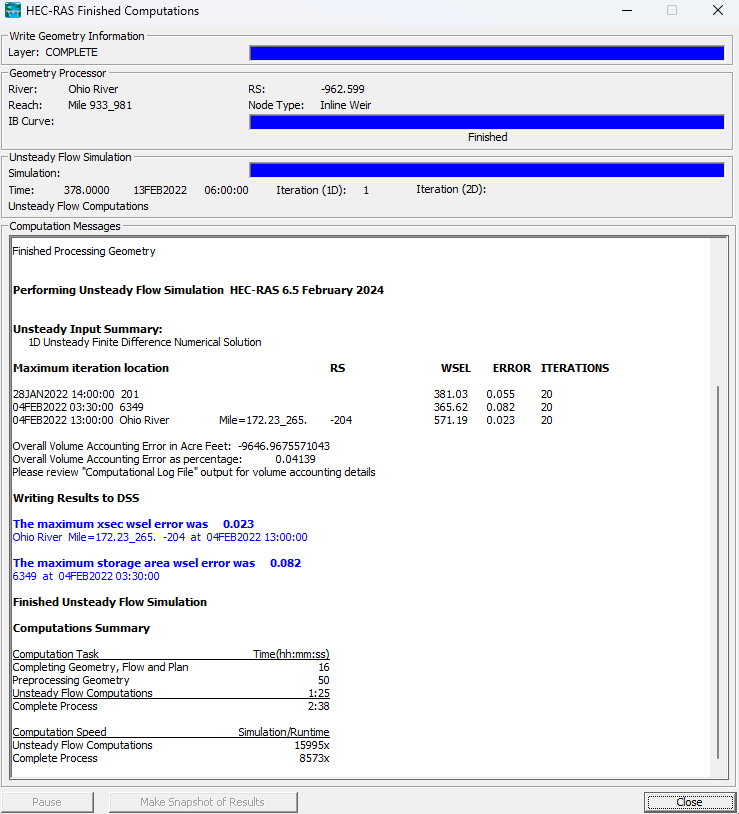
No plots and results generated
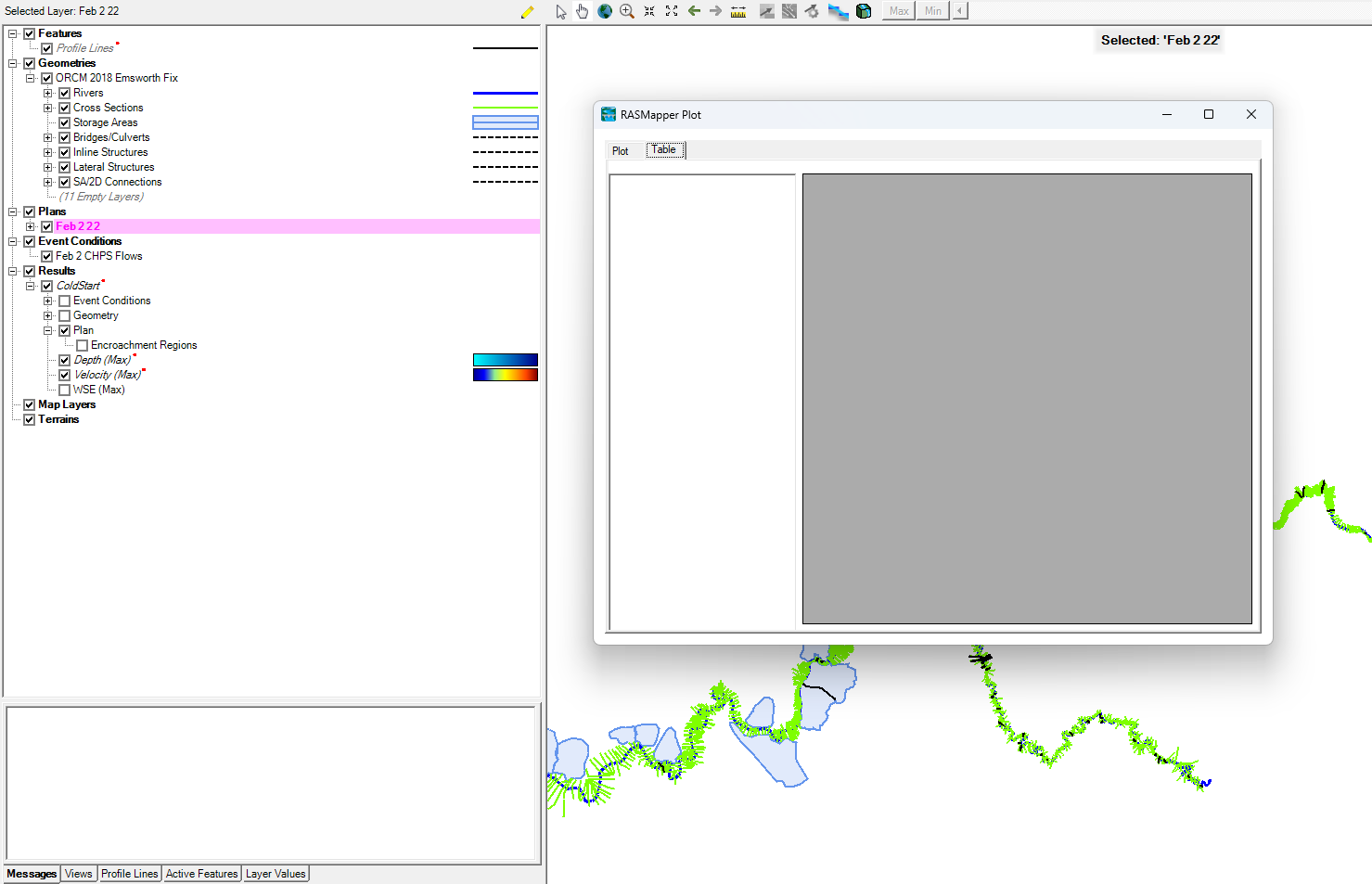

Ohio River Model_HEC_RAS 6.0
The updated ohio river HEC-RAS model (named it as 'Ohio_New' for my reference) from Brian was run using the HEC-RAS 6.0.0.
The output was not displayed for general profile plots. However, the stage and the flow results are displayed in the RAS-mapper.
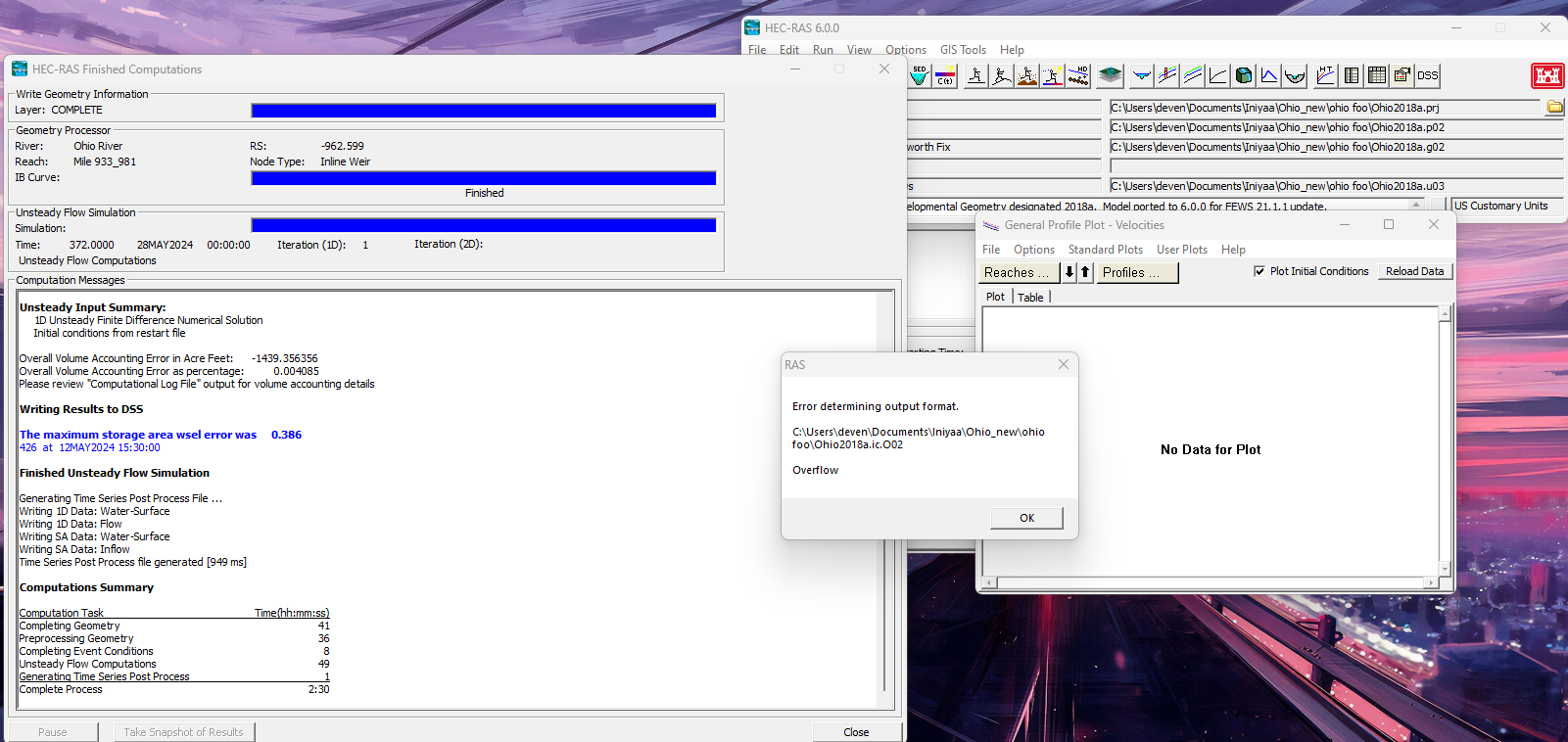
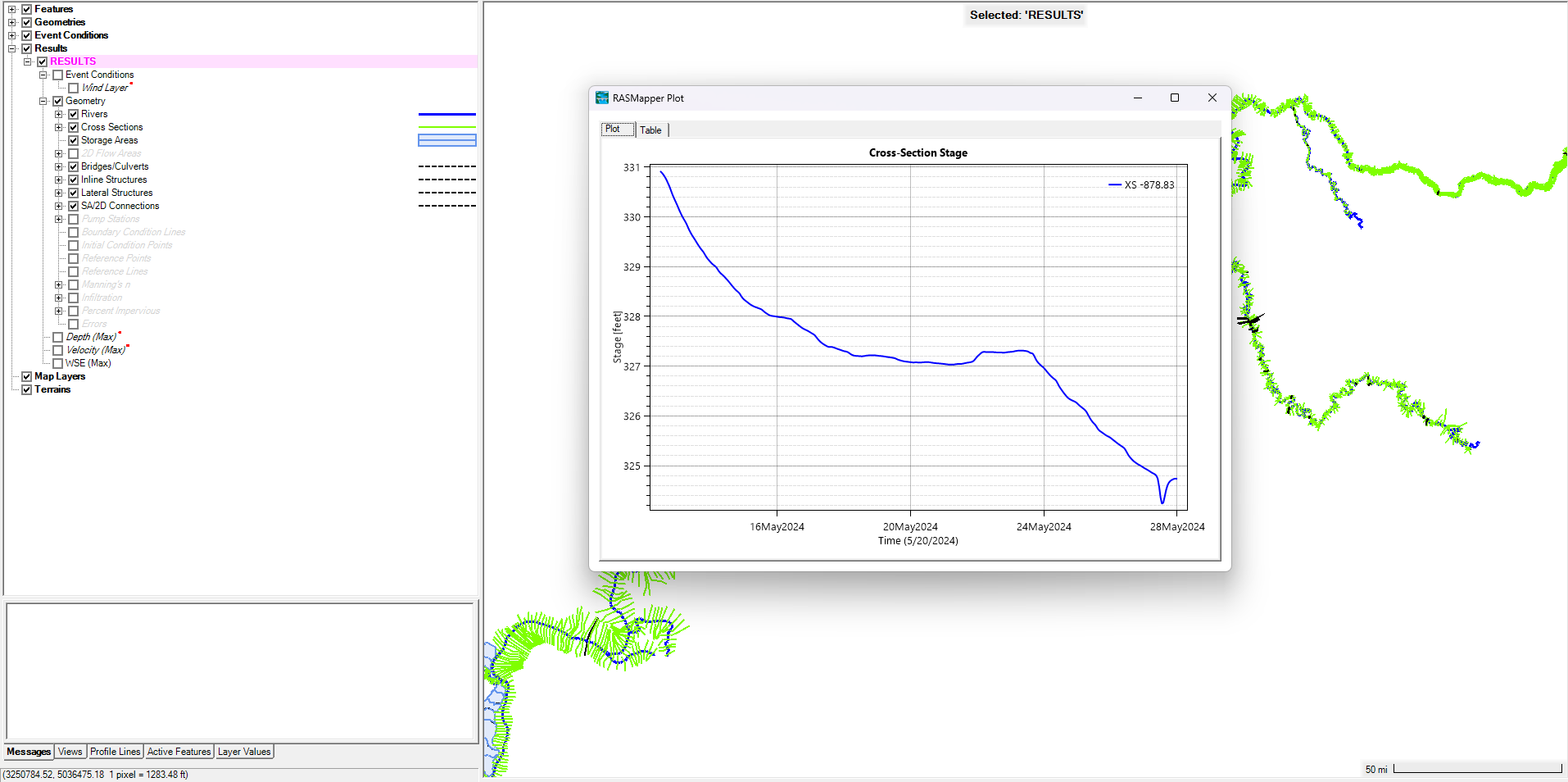
Problem with the output file generated.
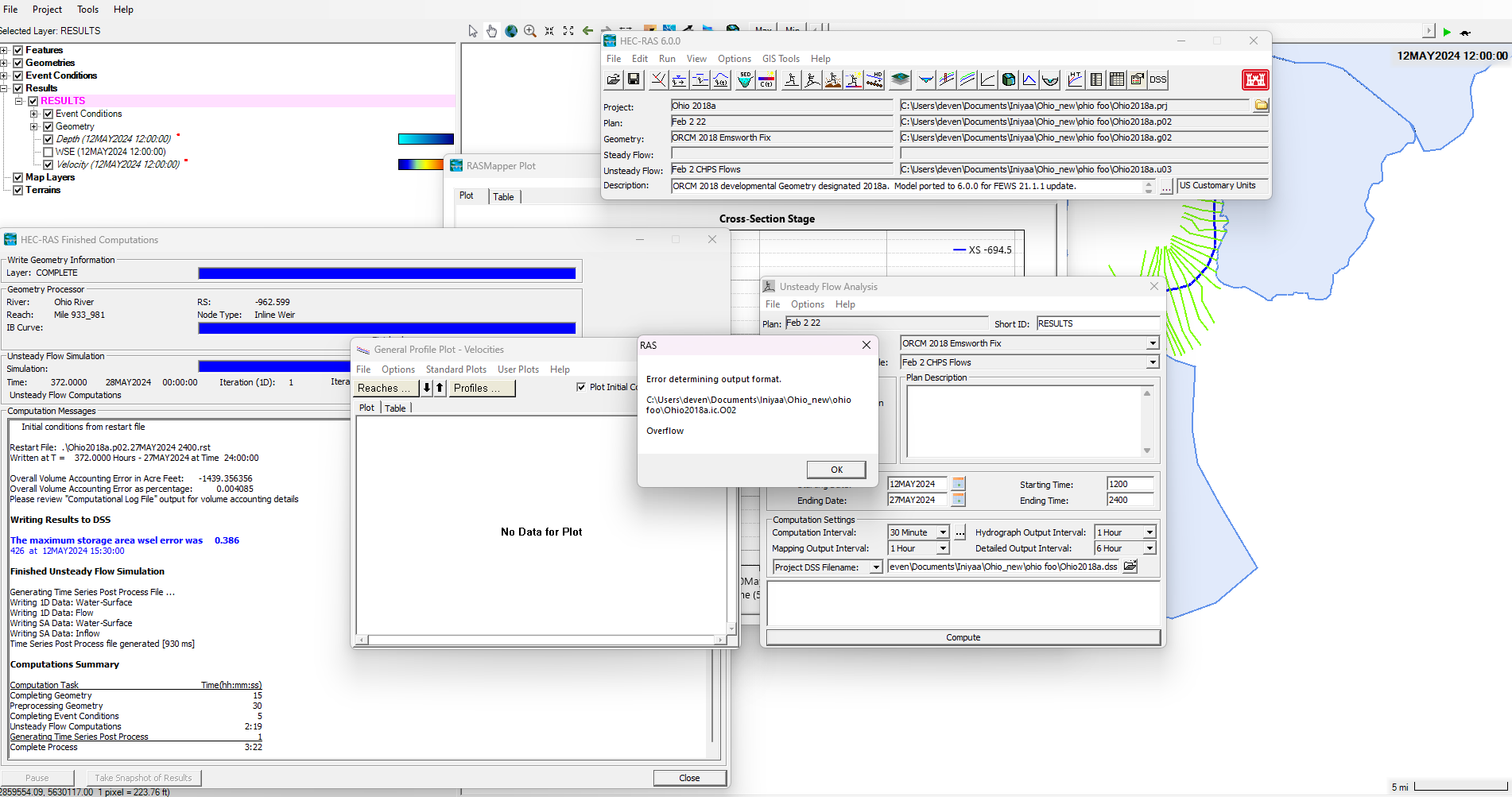
Ohio River ModelHEC_RAS 6.5 New model from Brian
The updated ohio river HEC-RAS model from Brian (named it as New_Ohio for my reference) was now run using the HEC-RAS 6.5.
The run was unsuccessful due to version incompatibility due to the restart file.
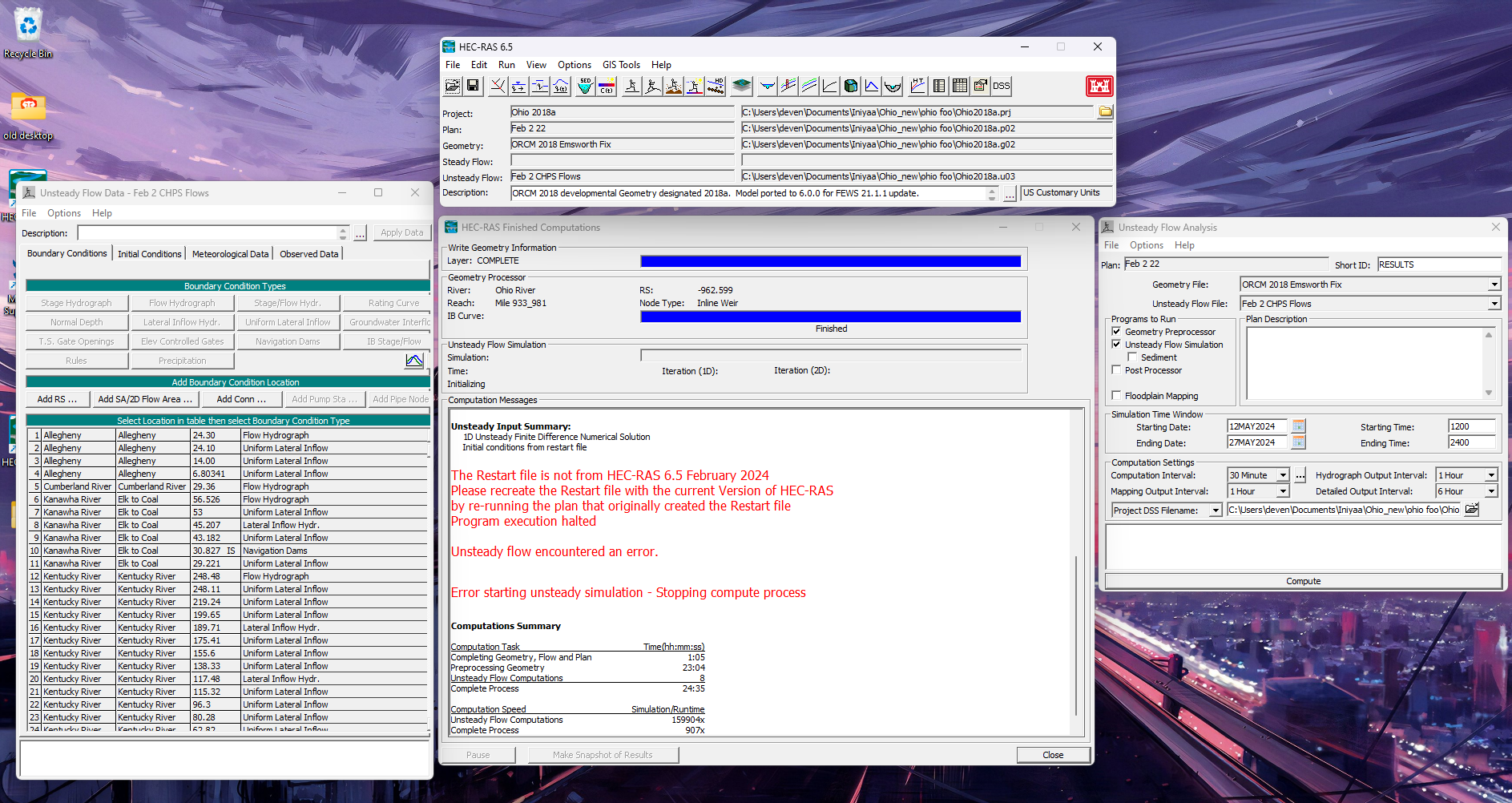
We ran it again without the restart file and it ran successfully but no output data.
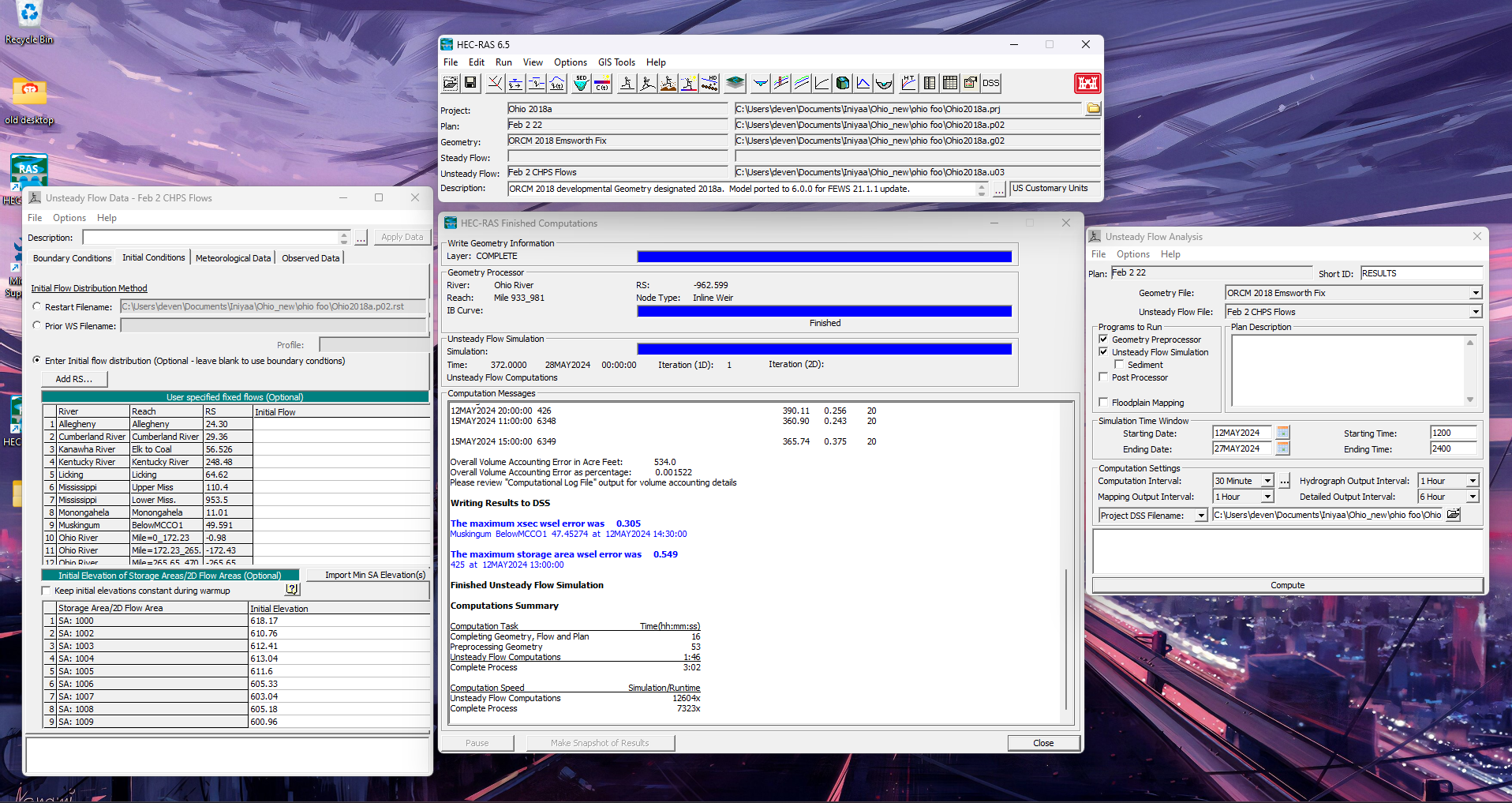

Since we couldn't view the output data, selected all the three programs to run: Geometry Preprocessor, Unsteady Flow Simulation and Post Processor.
We got the output data when all the three programs were selected.
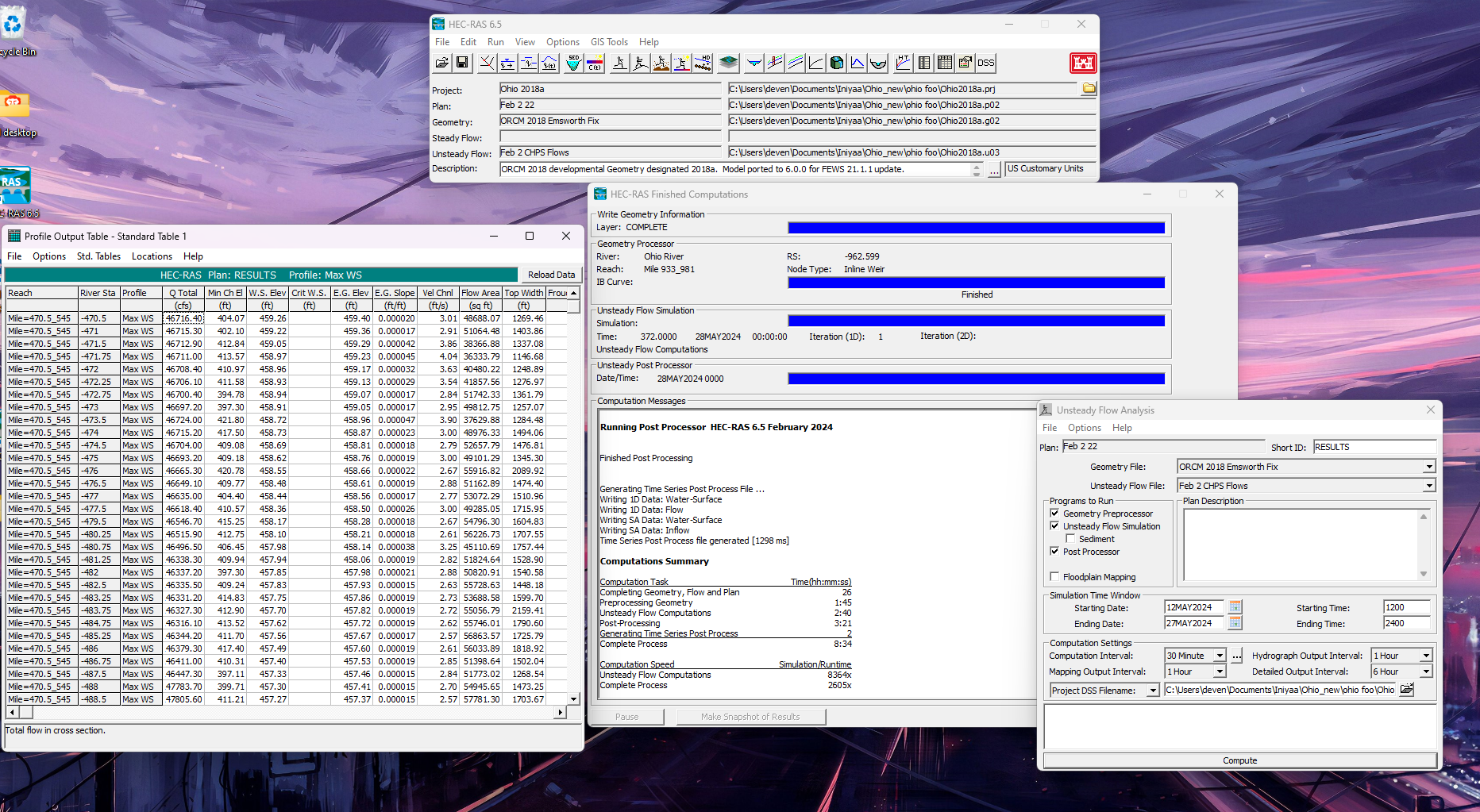
Summary of Experiment (HEC-RAS 6.5)
| ID | Model | Time Period | Boundary Conditions | Initial Boundary Conditions | Simulation Run | Stage and Flow Hydrograph- HEC RAS UI | RAS Mapper (animation) | Depth/ Velocity values in RAS Mapper |
|---|---|---|---|---|---|---|---|---|
| 1 | 1-D Ohio model from Brian | 12th May 2024 to 27th May 2024 | Brian's Boundary Conditions already in the model | Left it blank with no restart file | Run successful | can see stage and flow hydrograph | Can view flow in the map with discontinuity in some area | Non zero flows(Allegheny river and Monongahela river) |
| 2 | 1-D Ohio model from Brian | 12th May 2024 to 27th May 2024 | Brian's Boundary Conditions already in the model | Created a restart file for this model and used the restart file | Run successful | can see stage and flow hydrograph | Can view flow in the map with discontinuity in some area | Non zero flows (Allegheny river and Monongahela river) |
| 3 | Developed 2-D Ohio model with 1D Ohio Brian model | 12th May 2024 to 27th May 2024 | Brian's Boundary Conditions already in the model | Used the same restart file created for the 1D Ohio model | Error running the model (HEC-RAS wants us to create different restart file for this new model) | |||
| 4 | Developed 2-D Ohio model with 1D Ohio Brian model | 12th May 2024 to 27th May 2024 | Brian's Boundary Conditions already in the model | created a restart file for this model and used the restart file | Run successful | can see stage and flow hydrograph | Can view flow in the map with discontinuity in some area | Non zero flows (Allegheny river and Monongahela river) |
As we approach the Cincinnati region, the flow through the Ohio river gets discontinuous as attached in images below.
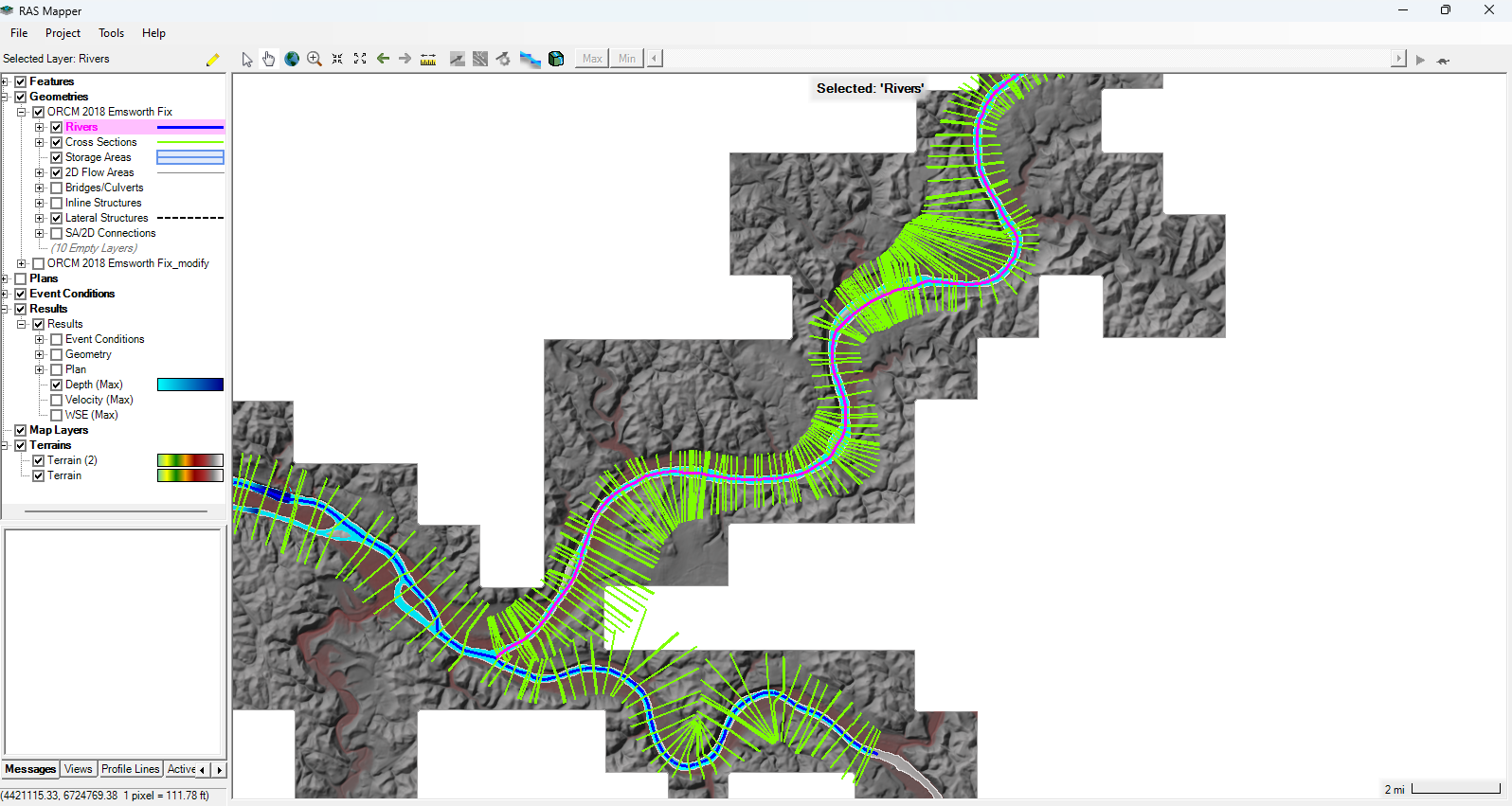
ID 1, 2, 4 have same flow coming from the Allegheny river and Monongahela river as shown in the image:
In ID 1, 2, 4 the Ohio river near Cincinnati region does not have flow as you can see in the image:
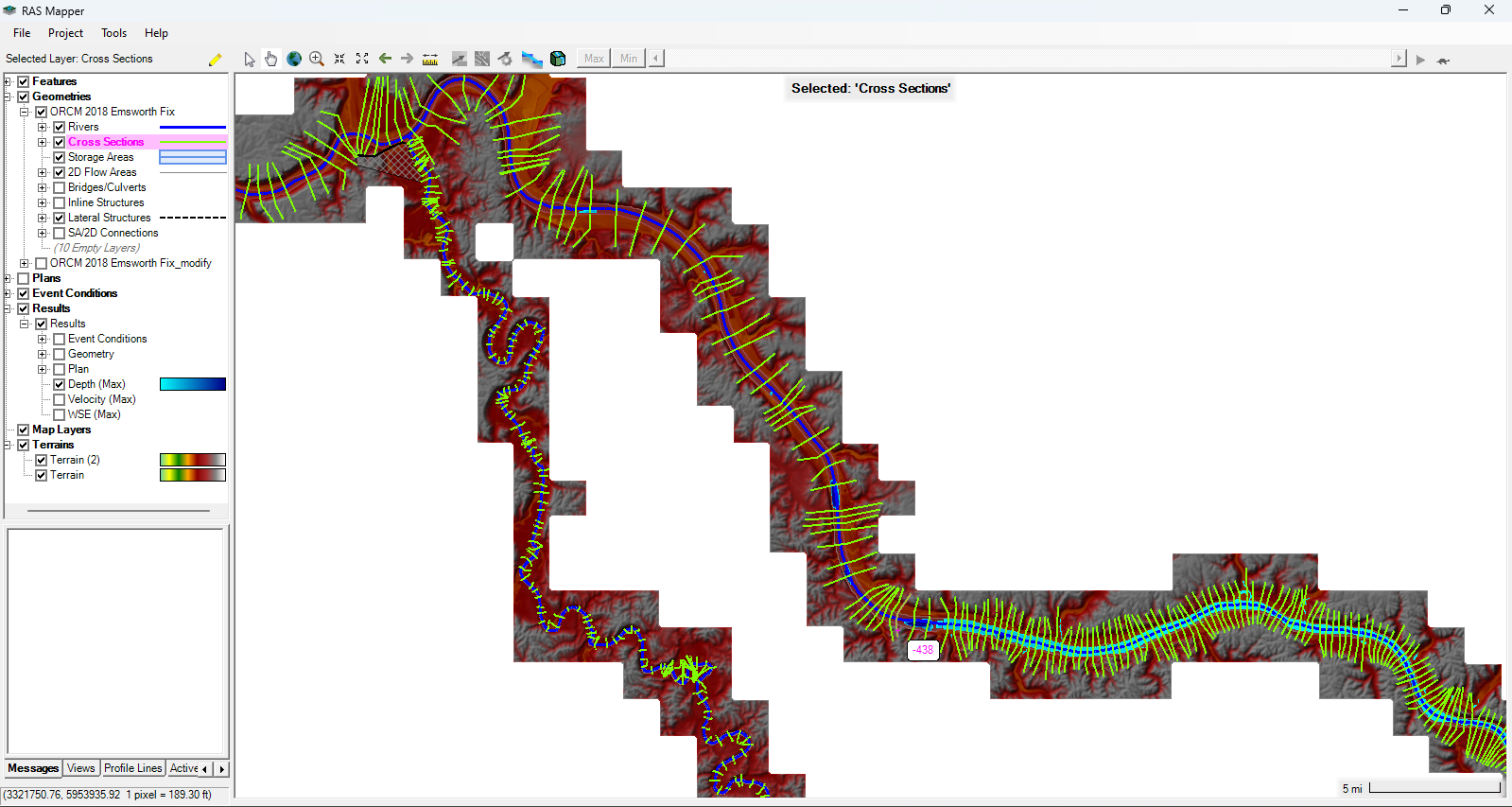
This might be due to not enough flow from the upstream.
With all this, we are going to rely on the HEC-RAS interface results and not the RAS-mapper results.
To view data associated to a cross-section in RAS- Mapper
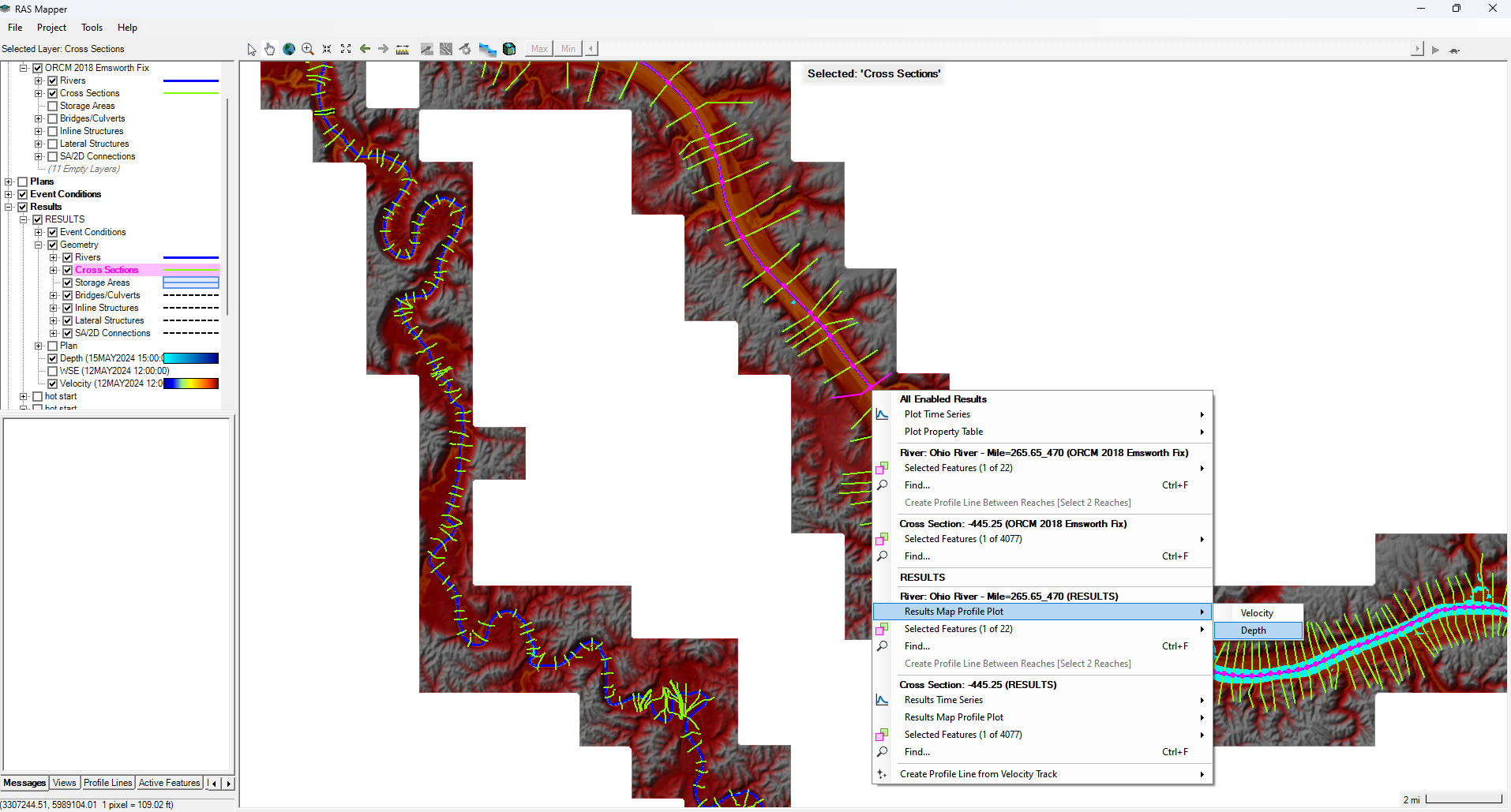
Check the box 'Cross Sections' from the list under Geometry created under the short ID. In this model, the short ID is 'RESULTS'.
Right click on the Cross section you want the data for. Under RESULTS-> click Results Map Profile Plot-> Velocity/ Depth.
Comparison of results of different models and HEC-RAS version
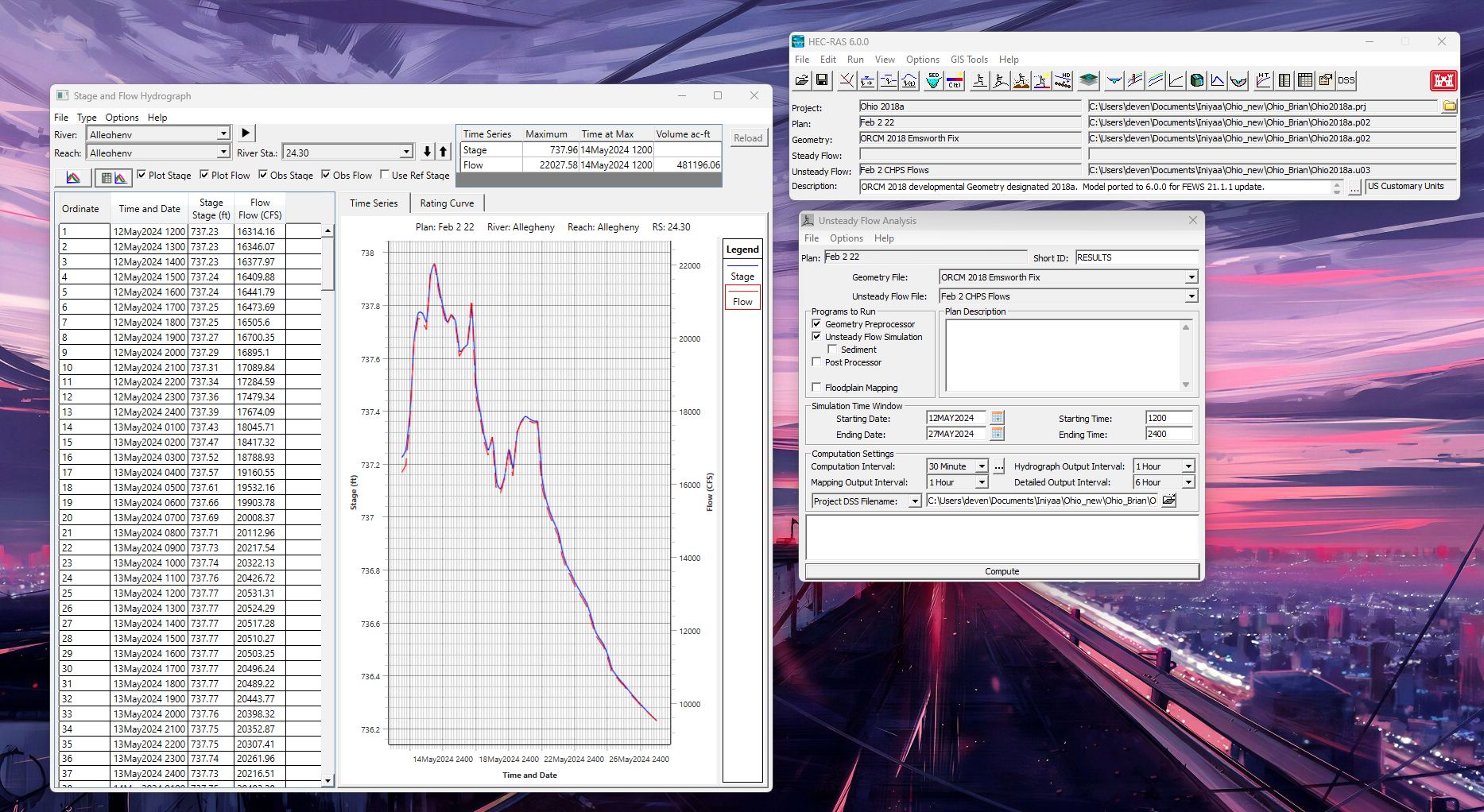
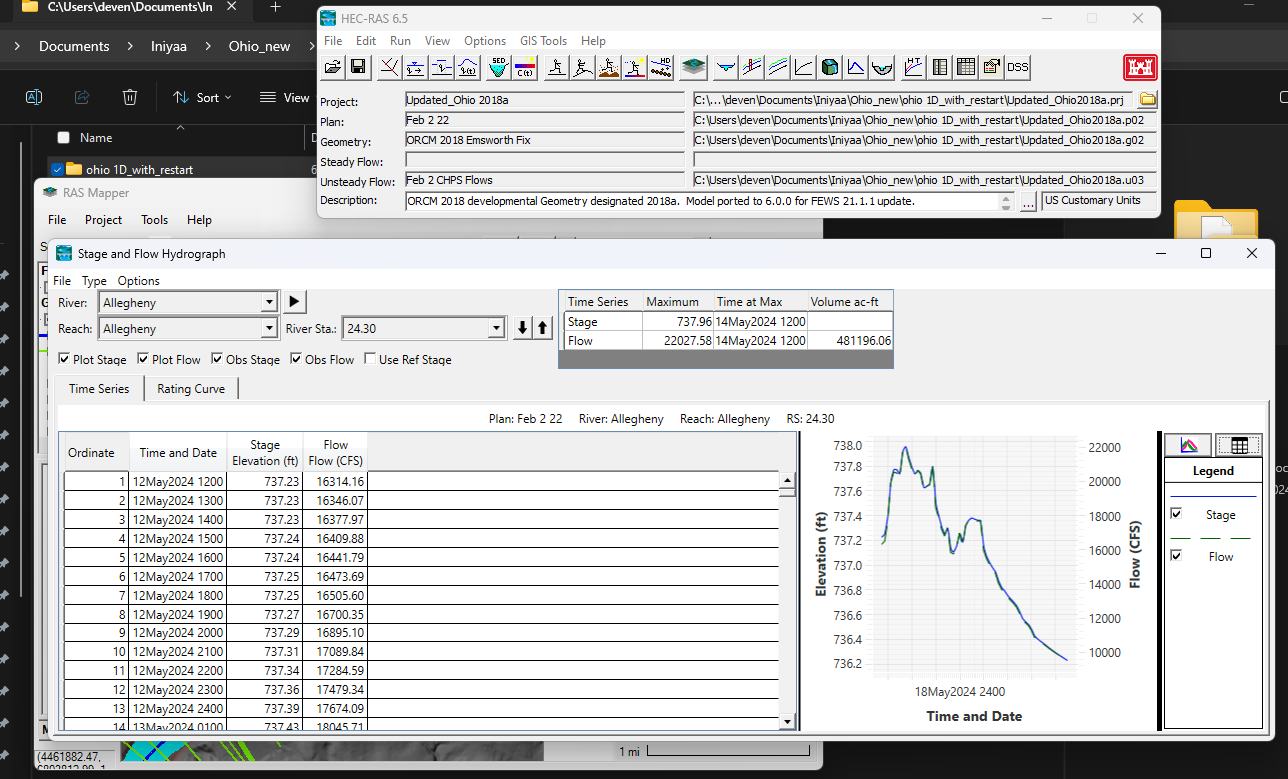
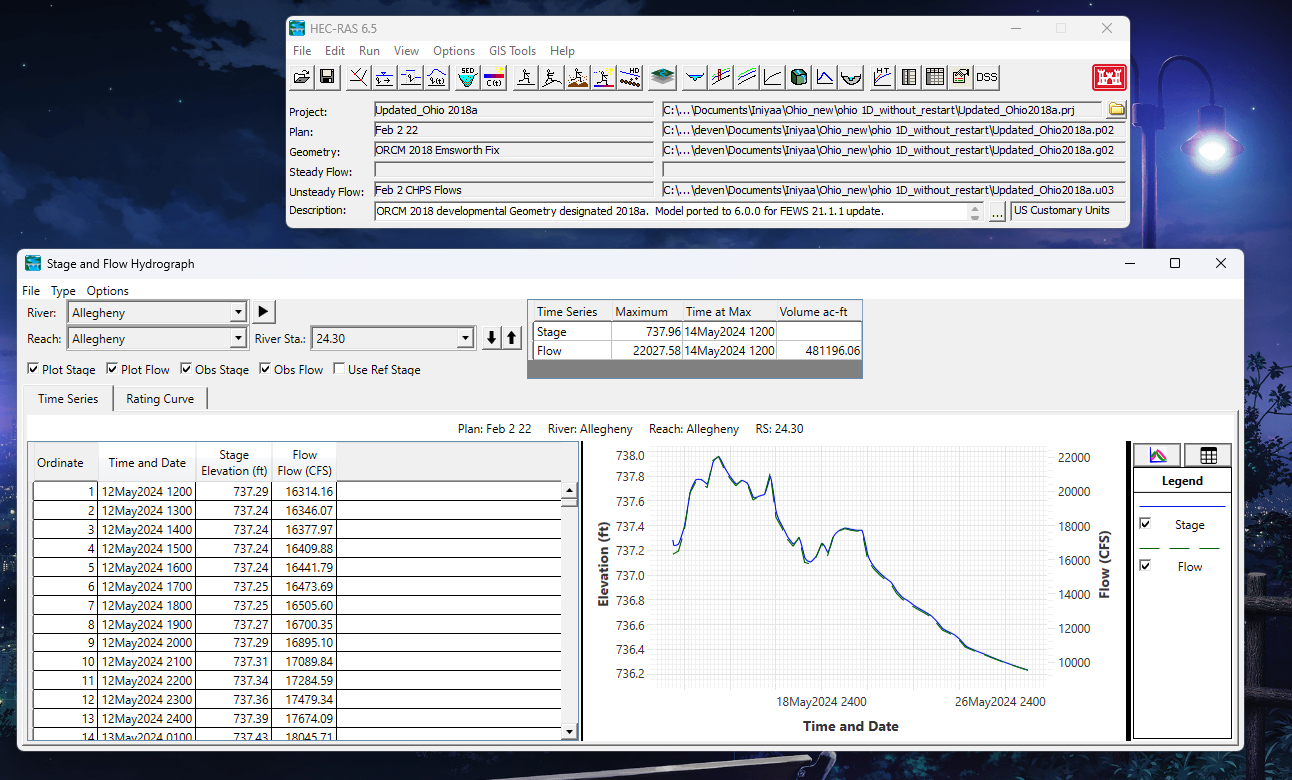
Stage and flow hydrograph in HEC-RAS UI was used to compare the results from different models.
Models compared: HEC-RAS 6.0 Ohio model from Brian, HEC-RAS 6.5 1D model with restart file and HEC-RAS 6.5 with no restart file. River station 24.30 was picked in Allegheny river from all the models.
HEC-RAS 6.0 Brian's Ohio model- with restart file:
HEC-RAS 6.5 1D model- with a new restart file
HEC-RAS 6.5 1D model- without restart file
Developing 2D model near Licking river- Cincinnati area
Followed the given tutorial:
https://www.hec.usace.army.mil/confluence/rasdocs/hgt/latest/guides/creating-an-combined-1d-2d-model to integrate 2D model by adding lateral structure and flow area near Cincinnati region to the 1D Ohio model.
The project, plan, geometry, unsteady flow file used in this model can be referred to the screenshot below.
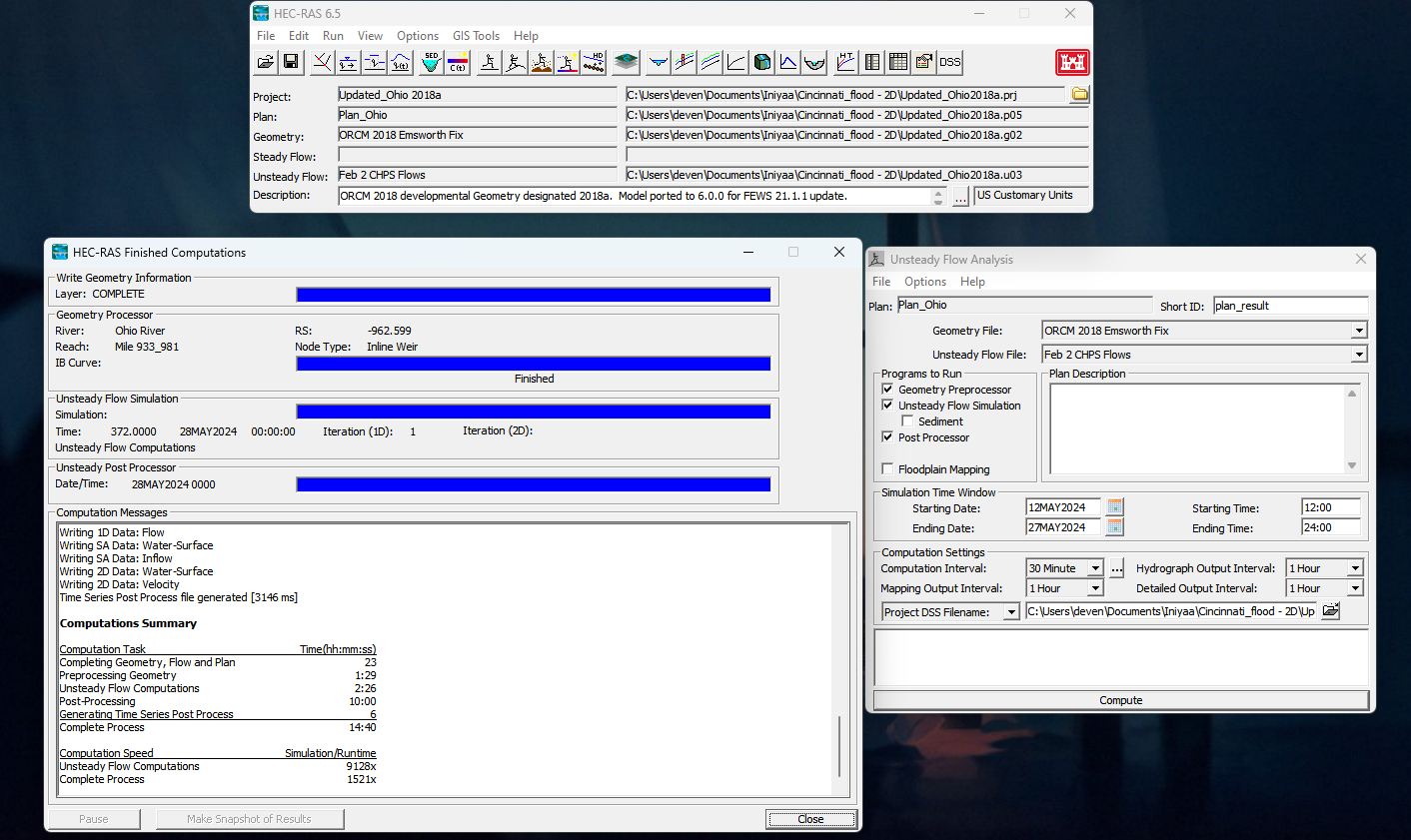
You will need to create a new restart file when you integrate 2D model. The restart file created for this model is 'Updated_Ohio2018a.p04.12MAY2024 2400.rst'
How to create Restart file
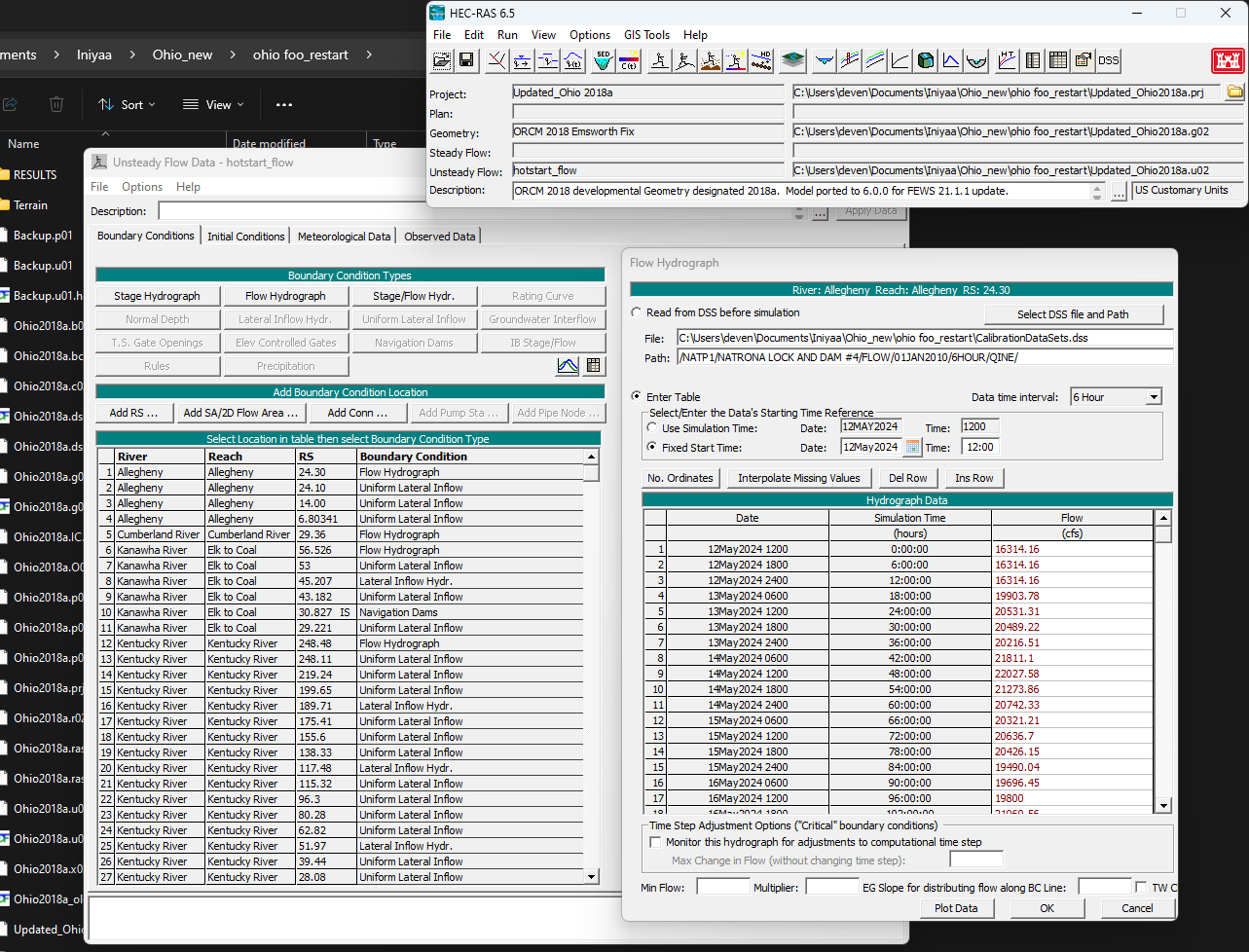
STEP 1: Create a new flow file by opening the current unsteady flow file and navigate to File, Save As, and name it “hotstart”. Once saved, change the upstream boundary condition by selecting Flow Hydrograph under the Boundary Conditions tab (modified all the flow hydrographs). Change the discharge to a constant flow equal to that of the first timestep from 12 MAY 2024 12:00 to 12 MAY 24:00.
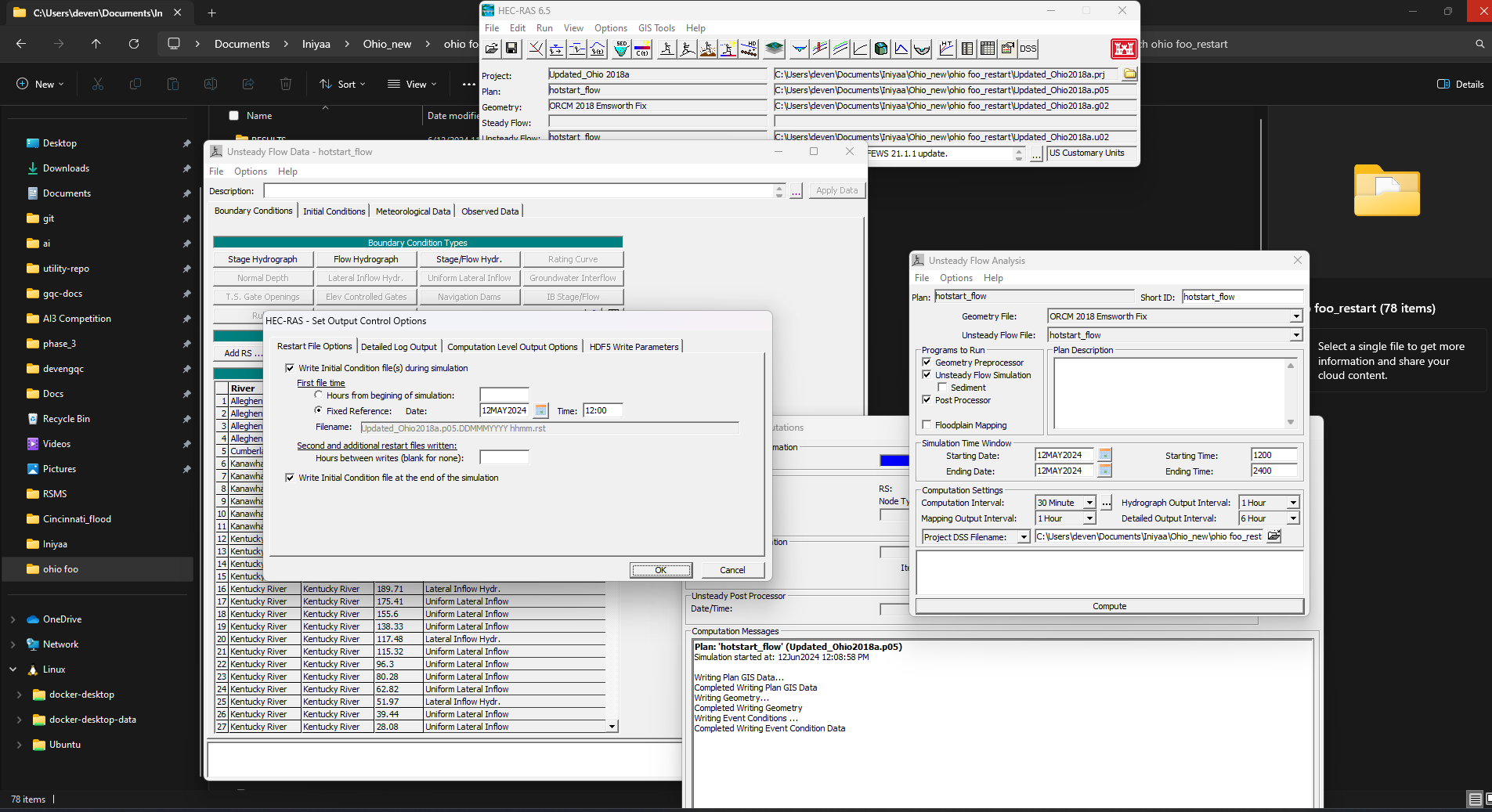
STEP 2. Navigate to the Unsteady Flow Analysis window and save as a new plan named “hotstart plan”. Name the short ID as “hotstart”. This will create a new plan that will define the initial project plan conditions. Under the Unsteady Flow Analysis window select the Ending Date and Time to 12 MAY 2024 12:00 to 12 MAY 24:00 (or whatever period you want to use-just be sure it is consistent with the hotstart flow hydrograph and stage hydrograph you created in Step 1).
STEP 3. The next step is to set up the model so that the hotstart file will be written. Under the Unsteady Flow Analysis window navigate to Options, then Output Options.Check the boxes that write the initial conditions file at the Fixed Reference of the hotstart simulation ending date and time. At the end of the specified simulation time (24 hours) HEC-RAS will automatically write the initial condition file. The final step is to ensure that the hotstart plan is using the correct geometry file, and the created “hotstart” flow file. Once the plan is completed and saved, compute the Hotstart simulation.
STEP 4. To use the hotstart file as your initial conditions, go to the Unsteady Flow editor of your project plan. Click on the “Use a Restart File” box and browse for the initial conditions file. This file will have an extension that indicates that hotstart plan number that created it, the simulation time (day-month-year) when it was created, and .rst.