Publishing the DWD API
Create the Publish
- Open the VS Solution
- Right click on the DwdApiAspnet project and select Publish
- Configure based on these settings:
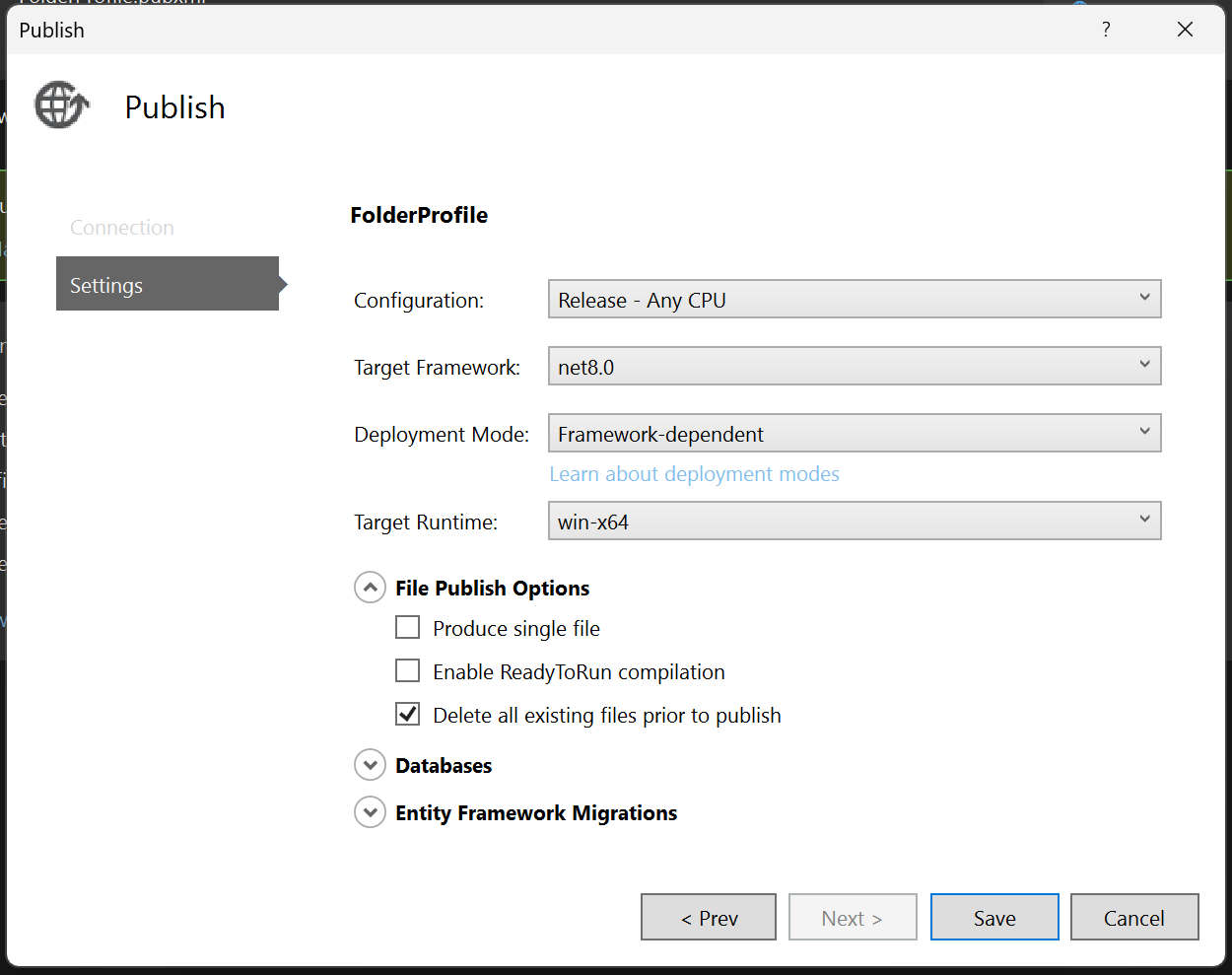
- And make sure you know the location to which the publish is written:
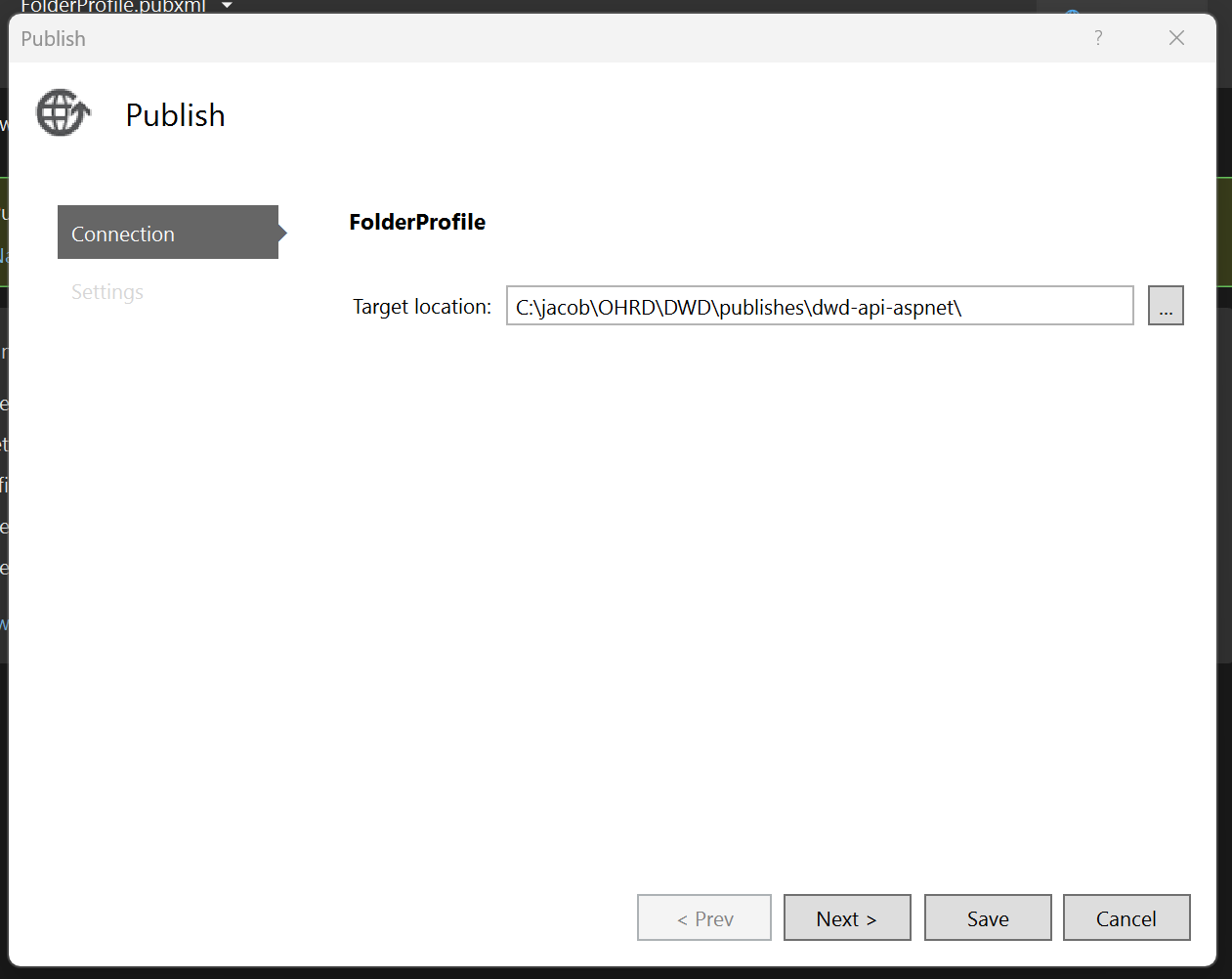
- Click the Publish button
- Open a File Explorer at the publish location
- Delete the appsettings.json, so that we don't overwrite the published destination's existing appsettings later. If there are appsettings changes, then you should make sure to make those changes manually to the existing appsettings.
- Zip the published
dwd-api-aspnetdirectory and append the following to the file name:_vX.X.X_MMDDYYYY. Here's an example from Jake's publish directory showing the zipped file name and the publish folder that gets zipped: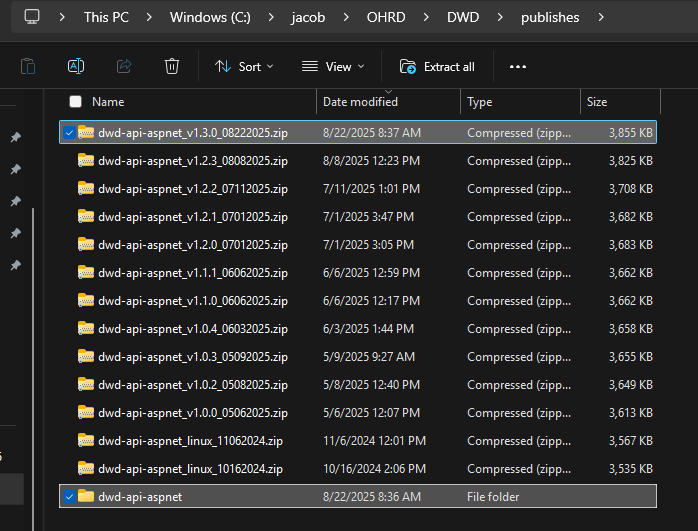
- Upload the zip file to Sharepoint at
Documents > OH > HydroTrek > DWD > publishes > API
Deploy the Publish to Windows Server
- Connect to the server with RealVNC or directly with mouse and keyboard.
- The device is the HP laptop in the small office.
- It's IP address (to use RealVNC) is
192.168.50.166. - User is
Administrator - Password is
HP-ai2@24
- Download the zip file from sharepoint.
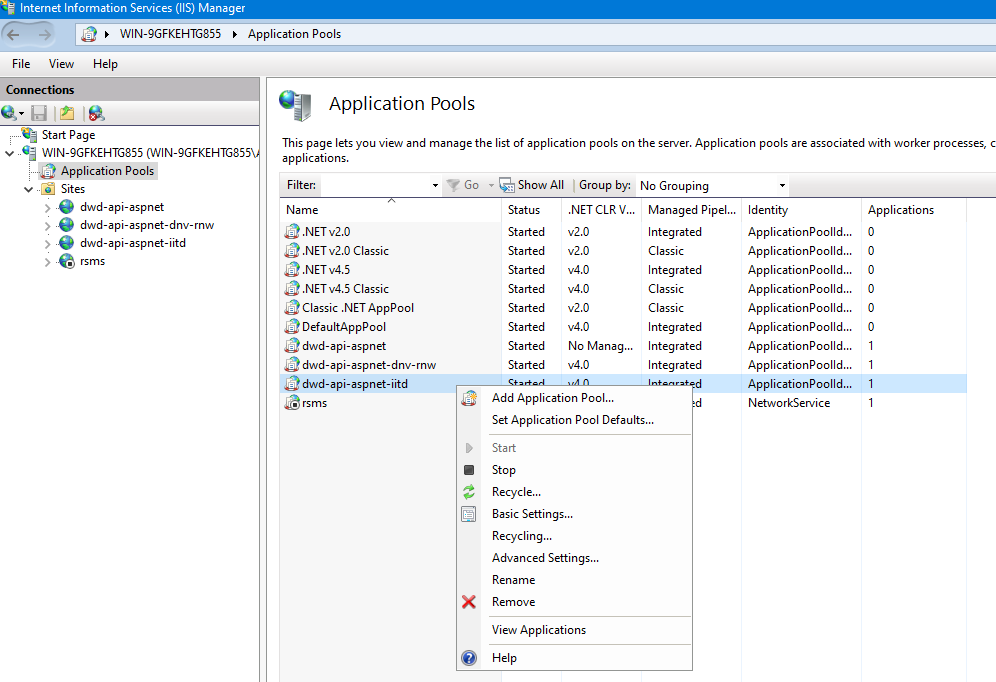
- Open IIS and navigate to the Application Pools section, then Stop each of the API instances, as seen in this screenshot:
- Open a File Explorer and navigate to the code directory:
- MTW:
C:\dwd-api-aspnet - DNV:
C:\dwd-api-aspnet-dnv-nrw - IITD:
C:\dwd-api-aspnet-iitd
- MTW:
- Make backups of the appsettings.json files just in case you forgot to delete it from the publish directory.
- Replace all content in the code directory with the content of the zip file. Make sure you don't overwrite the existing appsettings.json
- Once the files have successfully been written, you can go back to IIS and start the Application Pools.
Create a DB Dump
If you need to update the database on the server, you simply need to create a dump, upload it to sharepoint, download it on the server, and restore it.
- Make sure the API's appsettings.json file is pointing at the correct database.
- Open a CLI on your development machine in the API solution directory, i.e.
C:\git\gqc\hydrotrek-dwd-suite\dwd-api-aspnet - Run
Scripts\dump_db.cmd - Navigate to the User's Downloads folder (where the dump is written)
- Upload the dump to Sharepoint at
Documents > OH > HydroTrek > DWD > db_dumps > {network}, where {network} is dnv, iitd, lwc, or mtw. - Connect to the server and download the dump from Sharepoint.
- Create a new empty database matching the name of the dump, i.e.
mtw_8_22_2025 - Restore the dump into the database.