OCR Details
Important links:
In Google Colab
1. Bluring selected regions in a video
Date/time and distance fields of the test images were blurred.
Sample output:
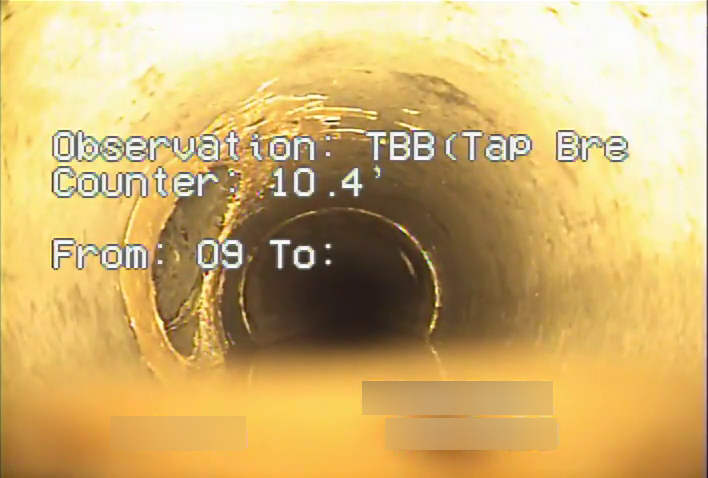
Source code: Google Colab notebook
TODO
- Extract audio from original video files and merge them to generated files
2. Setup and Test Google Vision API
Links followed:
https://codelabs.developers.google.com/codelabs/cloud-vision-api-python
In Google Cloud Shell
Go to Google Cloud and check the project ID, authentication, etc are correct
https://codelabs.developers.google.com/codelabs/cloud-vision-api-python#1Enable Google vision API (One time)
gcloud services enable vision.googleapis.comCreate a service account (for clients to access the Cloud APIs) (One time)
export PROJECT_ID=$(gcloud config get-value core/project)

gcloud iam service-accounts create cctv-vision-service-account --display-name "CCTV Google Vision Service Account"

gcloud iam service-accounts keys create ~/cctv_vision_api_key.json --iam-account cctv-vision-service-account@${PROJECT_ID}.iam.gserviceaccount.com
In the local environment (Colab)
Point to the json key file generated in the previous step in our dev environment.
%env GOOGLE_APPLICATION_CREDENTIALS=<path_to_key>.jsonInstall python packages
!pip3 install -U pip google-cloud-vision
import google.cloud.vision
Test the API
 from __future__ import print_function
 from google.cloud import vision

 image_uri = 'gs://cloud-vision-codelab/otter_crossing.jpg'

 client = vision.ImageAnnotatorClient()
 image = vision.Image()
 image.source.image_uri = image_uri

 response = client.text_detection(image=image)

 for text in response.text_annotations:
     print('=' * 30)
     print(text.description)
     vertices = ['(%s,%s)' % (v.x, v.y) for v in text.bounding_poly.vertices]
     print('bounds:', ",".join(vertices))
3. Detecting frames with text
Detect the frames with text (in bottom cropped image) in the middle of the frame using HSV and HLV color spaces
start with 1/sPush the detected frames to Google Vision API to detect textual data
- Send frames containing distance and date/time.
- Fetch 1/s and see
Fetch text data and keep an record with frame index.
<frame_id>.json can be saved
parsing can be saved for laterParsing the json and then running regex
Research:
- Hyper parameter tuning of the binary classifier with labeled data from google.
- From the parsed data, determining which frames to capture as positive samples.
- Test Google Vision API with python first.
https://cloud.google.com/vision/docs/ocr
Blurring the text
This is done in two steps:
Blurring distance and timestamp. (For use in Text/NoText binary classifier)
It was found that the video dimensions very from video to video
Blurring the text in the middle.
Processing pipeline v1
I've generated JSON files containing the OCR text data, on the distance & timestamp blurred frames containing text in the middle. Using Video: '/content/drive/MyDrive/VS_Research/CCTV/DNV/data/test_1/SANMN00893_1.mp4'
Video was first sampled with 1 frame per each second.
The original frame rate of the video is ~30 fps.
So we have frame array like: [0, 30, 60, 90, ...]Before sending to OCR we do a binary classification to screen the frames containing text in the middle region.
(For now, we used the Google vision API to do this classification by sending the frames with distance and timestamp blurred. But we'll move on to using our own method to do this)
We get a filtered array for frames containing text in the middle like: [30,60,330,360,390,...]Then we run OCR on the identified frames (on unblurred original frames) and JSON files including text in the middle. distance and date/time data. They are saved as JSON files.
Find the JSON files in 'SANMN008931' folder at https://drive.google.com/drive/folders/1--fXy7KIcwNcMDomcwFRbZ9aWPQjxlZJ?usp=sharing
Naming convention: <video_file_name><frame_id>.json
Eg: SANMN00893_1_000060.json
Next TODO:
Change the JSON convension to <video_file_name>/<video_file_name>_frame_id.json
Blur the text fields in the original video using bounding boxes in JSON
Compare the file sizes of PNG series of 1fps vs. saved video
Repeat the same steps for few more videos.
For now we stick to using Vision API for the classification.