CCTV CV Processing Workflow
Introduction
This page corresponds to the cctv-cv part of the gqc-utility-notebooks repository. The path to the cctv-cv part is /home/gqc/git/gqc/gqc-utility-notebooks/nbs/02_cctv_cv on the msi server. The CCTV CV Processing pipeline is used to create training and testing data to be used by the compute-msi repository for training a Computer Vision model.
Path forward
- Make sure to follow the steps in the README for gqc-utility-notebooks in order to run the scripts mentioned later in the documentation.info
To generate documentation locally for the cctv-cv notebooks, use the
nbdev_previewcommand.
- If any portion of the processing requires running a notebook from
gqc-utility-notebooksas a notebook itself, make a copy of it underUTLITIY/Data/Dataset/Notebooksfolder before modifying.
When running the processing on larger datasets, the runtime can be really long. In order to run a longer process without getting disconnected from the machine use tmux instead of VPN or MSI for more infomation on tmux https://tmuxcheatsheet.com/
  Open a tmux session with "tmux".
  We can start the long-running task on the MSI.
  Then press "Ctrl + b d" to detach from the session.
  You can then close the window.
  You can reattach to the session with "tmux a".
Current Workflow
Gold standard ERD with foreign key relations (Video_DB_UTL_X.db is the only database currently that complies with this)
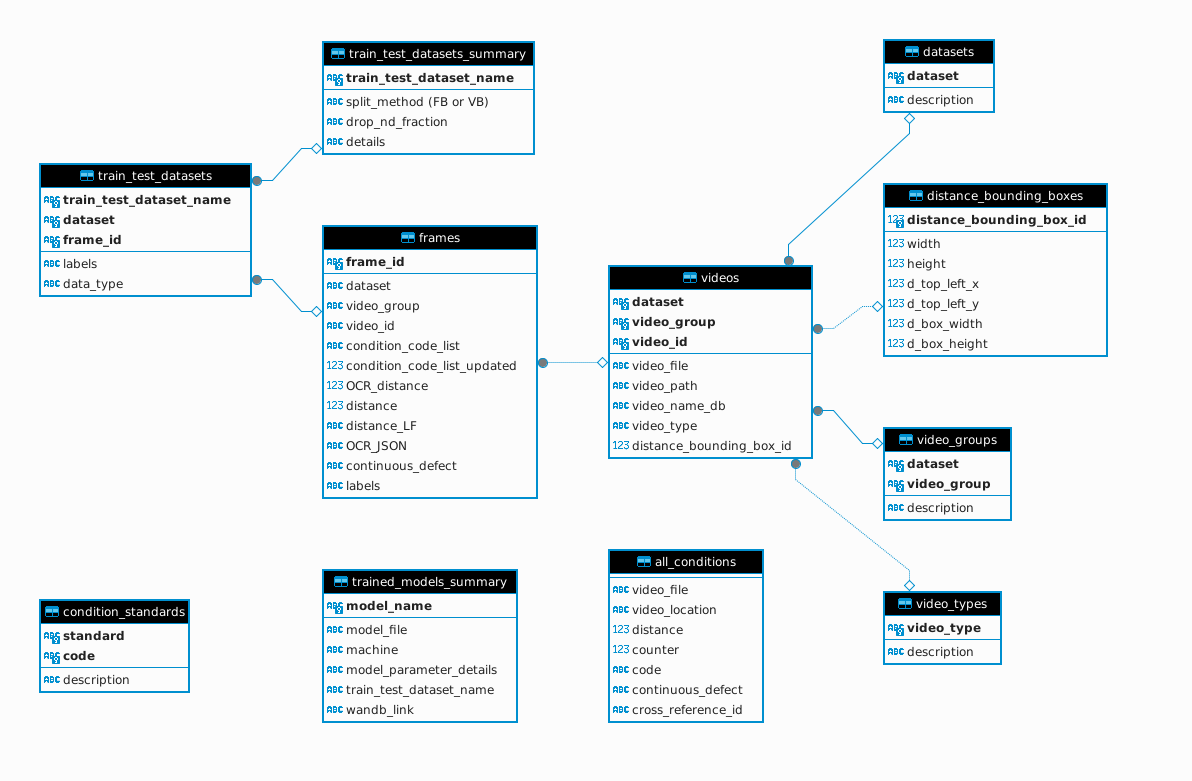
Definitions of Tables and Column
Important point: conditions are the same as defects.
This table serves as a definition for the video_types column in the videos table.
The distance bounding box CSV contains information of the bounding box that encloses the distance annotation in the video.
The frames table is created after frame extraction from the videos and contains information about the frames extracted.
The video_groups table is a reference table for which dataset each video group belongs to. There is a description column present, but all the rows in the column are NULL. A video group is an arbitrary name given to a collection of videos sent to gqc by the utility.
- videos table
The videos table contains is populated using the videos that are received from a Utility. It contains the following columns:
- video_group: Corresponds to the name of the subfolder within the Received_Data folder from which the Video is pulled.
- video_id: This is the id assigned to the video. The video_id is used as a cross-reference for the video_file column since video_file may have been named incorrectly at times.
- video_file: This is the actual file name of the video with the extension.
- video_path: The directory path in which the video_file is stored. (Needs renaming to folder_path and columns needs refactoring to only have the location of the folder in which the file is stored)
- video_name_db: Might have been used to refer to the specific database where the video is stored, but currently contains data which is all not_defined.
- video_type: Videos are assigned a type based on where the distance field is located in the video as well as how the distance field is formatted in the video.
- video_size_id: A foreign key to the video_sizes table which is used to identify the width and height of the video.
- distance_bounding_box_id: An id assigned to a video which is related to the distance_bounding_box table (foreign key to the distance_bounding_box table).
- dataset: Corresponds to the dataset within the Data folder from which the videos are pulled from.
- all_conditions table Important point: conditions are the same as defects. The all_conditions table contains information about the defects for a specific video. It contains the following columns:
- Code: This corresponds to the Defect code that the pipe in the video has. The meaning of the code can be found out from the condition_standards table in the description column.
- continuous_defect: These are the defects that occur continuously over the length of the pipe and every frame of the video is documented as having this defect.
- counter: Need to check what this is. Sample data: integer values.
- distance: Distance relative to the start of the inspection.
- video_file: The actual file name of the video with the extension.
- video_location: Might refer to the location where the utility stored the video. Sample data present in the column: Video\, Video\SD1_0420070-0420069_322020-1530_D_34943\, Y:\Work Order #11-025565 Complete\
- condition_standards table Serves as a definition table for the conditions(defects).
- Code: This is the defect code.
- Description: This column describes what the defect code actually means.
- standard: Refers to the inspection standard with which the pipe was inspected.
- video_types table This table serves as a definition for the video_types column in the videos table.
- video_type: Videos are assigned a type based on where the distance field is located in the video as well as how the distance field is formatted in the video.
- distance_field_regex: The regex expression that is used to query out the distance.
- d_top_left_x: The x coordinate of the top left corner of the distance box finder.
- d_top_left_y: The y coordinate of the top left corner of the distance box finder.
- d_bottom_right_x: The x coordinate of the bottom right corner of the distance box finder.
- d_bottom_right_y: The y coordinate of the bottom right corner of the distance box finder.
- distance_bounding_boxes table The distance bounding box CSV contains information of the bounding box that encloses the distance annotation in the video.
- d_top_left_x: The x coordinate of the top left corner of the bounding box.
- d_top_left_y: The y coordinate of the top left corner of the bounding box.
- d_box_width: The width of the bounding box.
- d_box_height: The height of the bounding box.
- distance_bounding_box_id: Primary key of the table that is used as a link between the videos table and the distance_bounding_box table.
- width: Refers to the with of the video (need to double check).
- height: Refers to the height of the video
- frames table The frames table is created after frame extraction from the videos and contains information about the frames extracted.
- dataset, video_group, and video_id all refer to the same things mentioned in the video table.
- condition_code_list: Not entirely sure what this is, but it refers to some of the defect codes that were present in the condition_standards table.
- condition_code_list_updated: Seems to be a boolean value and is set to 1 wherever condition_code_list is specified and 0 wherever condition_code_list is not specified.
- continuous_defect: refers to the same thing mentioned in the all_conditions table.
- distance: The actual distance relative to the start of the inspection.
- distance_LF: Not entirely sure, but all the rows in this column are null.
- frame_id: A unique id that is assigned to each frame in the table (primary key of the table).
- labels: The label for a frame whether the pipe in the frame has a defect or not. ND stands for non-defective.
- OCR distance: The distance value that Azure OCR produces as an output. Values in thie column aren't always the same as the distance column.
- OCR_JSON: This column contains JSON strings(need to check what it is exactly).
- video_groups table The video_groups table is a reference table for which dataset each video group belongs to. There is a description column present, but all the rows in the column are NULL. A video group is an arbitrary name given to a collection of videos sent to gqc by the utility.
- trained_models_summary, train_test_datasets, train_test_datasets_summary tables all are empty
Distance Bounding Box and Video Type
The video_type of a video serves multiple purposes, including defining search rectangles to identify distance values and condition codes within the video's frames. Additionally, the video_type specifies regex expressions used to extract these distance values and condition codes. For certain video_types (or if the video_type is not specified), the distance_bounding_box table is used instead to define the search rectangle for distance values.
Dataflow diagram
CCTVpackage is here. Generate the documentation following the instructions in theREADMEfile on the package to see more details on how to run each of the following stages.
File locations mentioned are specific to the MSI server.
1. Notebook 1: Video List creation and update (02_cctv_cv/cctv-video_list-creator.ipynb)
This module forms Video-Groups and creates video lists based on that. This considers subfolders inside Recieved Data folder as the Video-Groups and all video files inside those subfolders are added as Video-Group members recursively.
How to use this submodule
- Video-Groups are formed based on the subfolder names inside
Received_Datafolder. The name of the subfolder is taken as thevideo-groupname and all videos inside the subfolder is included in that particularvideo-grouprecursively. Hence, make sure the input data is organized according to the required format. Finally, thevideo-listsare created based on thoseVideo-Groups. - Create or modify
cctv_settings.ymlfile and set the variables (if not already done). - This module uses the following parameters from
cctv_settings.yml:
- `WORKING_PATH`
- `UTILITY`
- `DATASET`
- `VIDEO_FOLDER`
- `VIDEO_DB_PATH`
- `DISTANCE_BOUNDING_BOX_CSV`
- `VIDEO_TYPES_CSV`
2. Notebook 2: Extracting metadata from metadata DBs (02_cctv_cv/metadata_DB_extract_inspection_condition_data.ipynb)
This module will only work on Windows as it requires reading from Access DBs which is only supported under windows.
Creation of all_conditions.csv from Access Databases
3. Notebook 3: Import supplementary data (02_cctv_cv/cctv-import_supplementary_data.ipynb)
This module import distance regions, video-types, Condition_code_standard, and all_conditions CSV files into Video_DB as separate tables. It also updates videos table video-type column.
The locations of the CSV files used below are specified in the cctv_settings.yml
Supplementary data tables should be added by now?
4. Notebook 4: Frame Extraction: Locations of the video files is received from the videos table, after which frame extraction takes place. Frame extraction is done using openCV. (02_cctv_cv/cctv-frame-extraction.ipynb)
This module extracts frames from a list of videos and saves them as JPG files under a zip file.
How to use this submodule
Set the following variables in the
cctv_settings.ymlfile (if not already done).WORKING_PATH,UTILITYandDATASETvariables.- Set the path to the distance region info csv to
DISTANCE_BOUNDING_BOX_CSV - Then define the
video_groups to process as a list. (Even if you only need to run a single group, define it as a single element list) - Set the following paths according to how you have organized your data. Use relative paths from
WORKING_DIRfor following. Use the python f-string syntax for variable substitution.VIDEO_LIST_CSV_STRING: Directory containing video list csv files.EXTRACTED_FRAMES_ZIP_STRING: Directory containing the extracted frame zip files.AZURE_JSON_ZIP_STRING: Directory containing Azure JSON zip files.LABELS_CSV_ZIP_STRING: Directory containing label csv zip files.VIDEO_DB_PATH_STRING: Path to theVideo_DB
5. Notebook 5: Stitch frames and run through Azure OCR (02_cctv_cv/cctv-full-frame-stitch-and-Azure-OCR.ipynb)
This will do the following:
Run Azure OCR on 6 stacked full frames.
The OCR results will be saved to JSON files (one per each frame similar to before) which can be used for blurring in the next stage.
Distance values will be extracted and saved to
data/Labels_csv/Distance_<video_group>.zip/<video_id>.csvfile.
6. Notebook 6: Blurring frames (02_cctv_cv/cctv-save-blurred-frames.ipynb)
How to use this submodule
- This takes in CSV file list containing paths to frames. (The output CSV files from Frame extraction utility.)
- Processes them through Azure API for OCR and saves data as JSON to
<AZURE_JSON_PATH><CSV_name>/frame_id.json. - Blur the frame text fields and save them to
<TRAINING_IMAGE_PATH><CSV_name>/image_id.jpg - CSV files containing extracted label information.
<TRAINING_CSV_PATH><CSV_name>.csv
This module takes in the extracted frames and the CSV files generated by CCTV Frame Extraction utility and recognize the text present in the frames.
7. Notebook 7: Extracting distance values from Frames (02_cctv_cv/cctv-extract-distance-values.ipynb)
This module takes in the JSON files containing OCR results and extracts the distance values.
How to use this submodule
Set the following variables in the
cctv_settings.ymlfile.WORKING_PATH,UTILITYandDATASETvariables.- Set the path to the distance region info csv to
DISTANCE_BOUNDING_BOX_CSV - Then define the
video_groups as a list. (Even if you only need to run a single group, define it as a single element list) - Set the following paths according to how you have organized your data. Use relative paths from
WORKING_DIRfor following. Use the python f-string syntax for variable substitution.VIDEO_LIST_CSV_STRING: Directory containing video list csv files.EXTRACTED_FRAMES_ZIP_STRING: Directory containing the extracted frame zip files.AZURE_JSON_ZIP_STRING: Directory containing Azure JSON zip files.LABELS_CSV_ZIP_STRING: Directory containing label csv zip files.VIDEO_DB_PATH_STRING: Path to theVideo_DB
This submodule will read JSON files from
JSON zipand extractdistancefrom them. Will save the results to csv files insideRELATIVE_LABELS_CSV_ZIPand to the DB inVIDEO_DB_PATH.
8. Notebook 8: Distance Value Post Processing Logic (02_cctv_cv/cctv-distance-value-post-processing.ipynb):
This notebook processes the distance values detected by OCR to remove outliers and fill in the frames without distances by linear interpolation and extrapolation.
Post-processing steps:
For each video,
- Drop the first 40 frames to skip the initial messages in the video.
- Apply a gradient limiting filter to the distance values to remove the outliers. Gradient limits derived based on the 2x the PACP specified max speed, which is then converted to distance per frame.
- Apply linear interpolation to all blank distance fields. If the initial frame distance field is blank, I assign the value 0 to it.
9. Extracting condition codes from Frames (02_cctv_cv/cctv-extract-condition_codes.ipynb)
This submodule reads the OCR_JSON column in the frames table and extracts condition codes.
How to use this submodule
Set the following variables in the
cctv_settings.ymlfile.WORKING_PATH,UTILITYandDATASETvariables.Then define the
video_groups as a list. (Even if you only need to run a single group, define it as a single element list)Set the following paths according to how you have organized your data. Use relative paths from
WORKING_DIRfor following. Use the python f-string syntax for variable substitution.1. `VIDEO_LIST_CSV_STRING`: Directory containing video list csv files.
2. `EXTRACTED_FRAMES_ZIP_STRING`: Directory containing the extracted frame zip files.
3. `AZURE_JSON_ZIP_STRING`: Directory containing Azure JSON zip files.
4. `LABELS_CSV_ZIP_STRING`: Directory containing label csv zip files.
5. `VIDEO_DB_PATH_STRING`: Path to the `Video_DB`This utility will read JSON files and extract
condition codesfrom them. Will save the results to csv files insideRELATIVE_LABELS_CSV_ZIPand to the DB inVIDEO_DB_PATH.
10. SD1_label_images (02_cctv_cv/cctv_SD1_label_images.ipynb)
The purpose of this notebook is to label frames listed in csv that are generated after running the cctv-extract-condition_codes notebook.
After both distance and condition codes are extracted from the video frames, this module can be run using the same yml file.
Original comments by Vannary:
This notebook will create label for images according to distance labels csv and the condition data stored in metadata csv of each video in the videogroup.
Your list of video csv should contain video_file to link the video to the metadata
Input all the files path and choose whether you want to run preprocessing() to clean up distance value
For each video,
Create list of continuous defects and point defects and their distance based on the metadata csv.
Find the middle frames of all frames with the same distance as point defect and assign the middle frame as the true defect frame.
Find the spatial correlation between the true defect frames and other frames that located within x distance from the defect distance. (see assign_label_high_spatial_correlation_access_version())
Assign defect label to frames with spatial correlation >= 0.98 and exclude the rest of the frames from training
Assign continuous label to frames
Assign ND for the remainding frames
Save a dataframe and save it to
<outputfilepath>/label_<video_name>.csvCreate a dataframe containing all the label csv of all videos in the video group and save it to
<outputfilepath>/label_<video_group>.csv
11. Training Data Splitter (02_cctv_cv/cctv-prepare-cctv-training-csv.ipynb)
:::info
Frame Based (FB) or Video Based (VB) splitting needs to be selected in this step.
Definition of Frame Based (FB) split: To evaluate the model performance for QA/QC purposes, the total data set is stratified split into the three data sets at a ratio of 3(training): 1(validation): 1(testing). Models trained and tested with these data are referred to as frame-based (FB) models.
Definition of Video Based (VB) split: To evaluate the model performance for classifying defects in new inspection videos, videos are randomly selected to be reserved as testing data, until the number of test images reserved is approximately 20% of the total images. Images from the remaining videos are stratified split into 75% training and 25% validation data. For this split into the three data sets, also at a ratio of 3:1:1, the distribution of the class groups are the same for the training and validation data set, but are different for the testing data, as shown in Fig. 3b. Models trained and tested with these data sets are referred to as video-based (VB) models.
Set the DROP_ND with the portion ND frames should take from the full dataset. By default it is at 0.5.
:::
These csv files and the extracted blurred_frames.zip containing the corresponding image files are passed on for ML Training section.
Statistics related to processing images:
- Frame extraction into ZIP folder: With every 30th frame being extracted from the video, the average rate it took for the cctv-frame-extraction.ipynb notebook to extract frames is 125.9 frames/second.
- Azure OCR for frames: The average rate of completion of Azure OCR is 4.26 frames/second.
- Blurring Frames: The average rate at which frames are blurred is 99.23 frames/second.
- Distance Value extraction and Condition Code extraction are fast processes and can process around 700 frames per second.